
It appears that many gamers believe the Nvidia App sucks because installing or using it costs performance. That was the theme of many comments left on our previous article about how to configure the Nvidia App for the best experience. Granted, only some of the comments focused on this, but many people seem to believe that avoiding the Nvidia App is better than using it. We saw comments calling the app bloated garbage, claiming it creates stutters in games, and saying the overlay is a performance hog.
We've been using the Nvidia App across a range of test systems and personal gaming rigs, and we've never encountered any serious performance issues. We don't believe the Nvidia App hurts performance. If anything, having to use the slow and outdated Nvidia Control Panel is more of a hindrance, given how long it takes to respond to inputs or setting changes.
But this isn't something we've explored in detail. We've simply installed the Nvidia App and gotten on with life. Could this software actually be slowing down a PC? Are the commenters right? That's what we want to find out today.
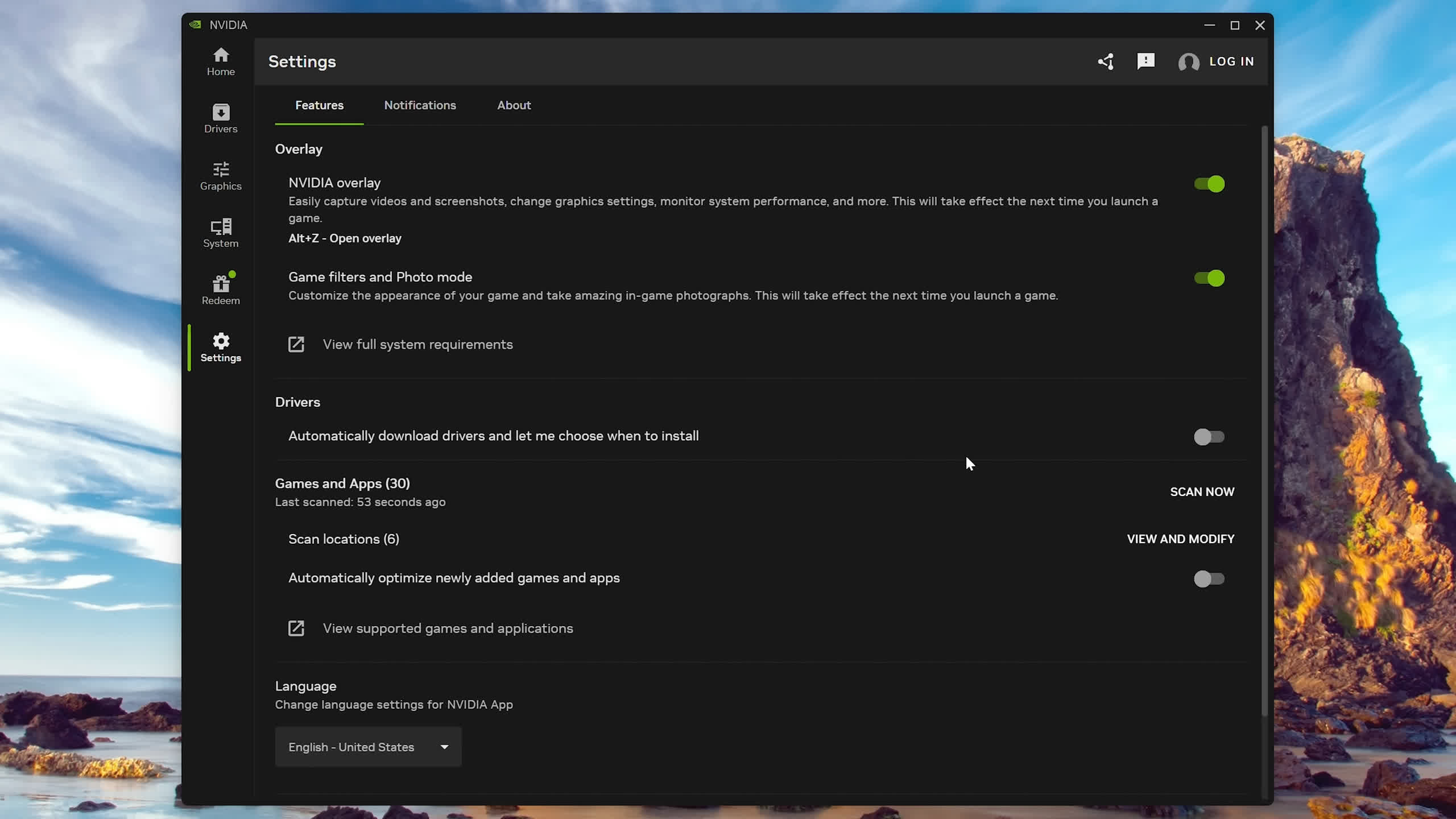
We're not just going to examine whether having the Nvidia App installed or uninstalled affects performance. The Nvidia App also includes features such as the performance overlay, video recording, and in-game filters, so we thought it would be useful to explore the performance impact of those features as well.
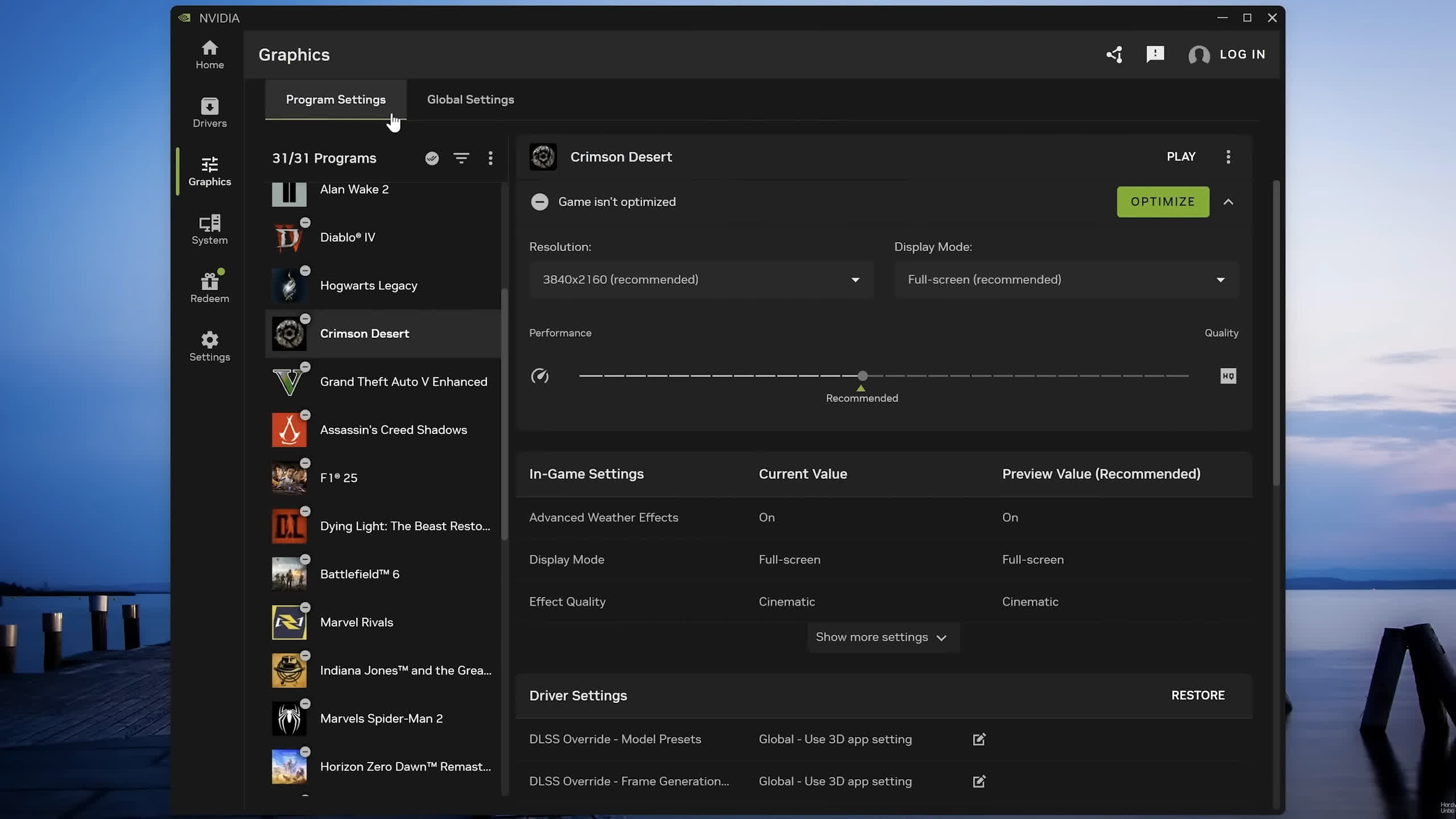
With Nvidia's latest GeForce driver, version 610.62, you can choose during installation to install either the GeForce GPU driver alone or the GPU driver alongside the Nvidia App. Neither option installs the Nvidia Control Panel, which is consistent with what Nvidia said would happen when it officially retired the Control Panel a couple of weeks ago.
However, Windows may automatically install a driver before you manually install the latest GeForce driver. In our case, this caused the Control Panel to be installed automatically. The latest GeForce drivers do not remove the Control Panel regardless of which option you select, so you could still end up with it installed on your system.
Does simply running the Nvidia App reduce performance?
First, we wanted to explore the performance difference between these two installation options. To do so, we cleaned the test system using DDU, installed only the GPU driver, and measured performance. We then ran DDU again, installed the GPU driver and Nvidia App, and repeated the tests.
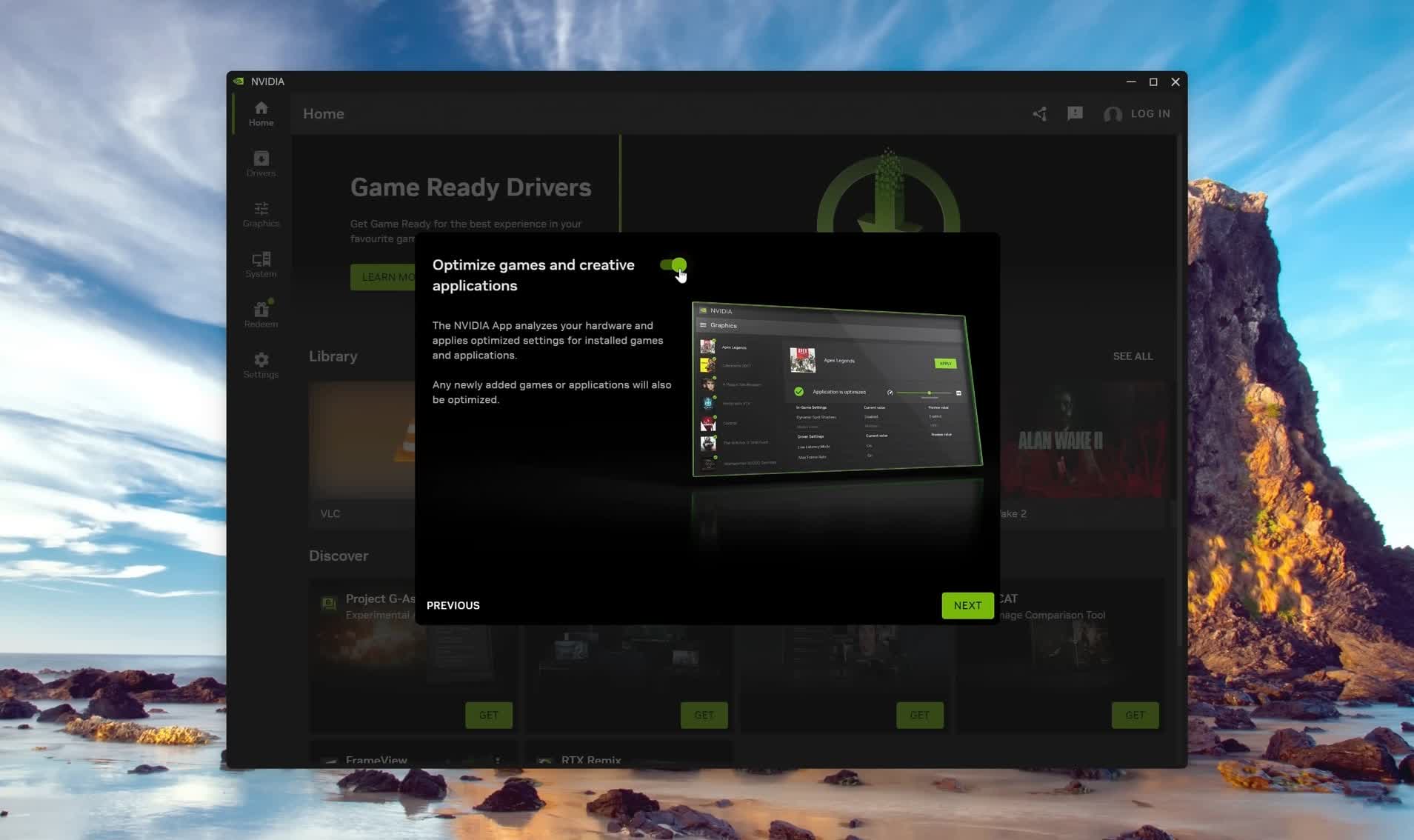
After installing the Nvidia App, we completed its setup process and confirmed that it was working properly before testing. This allowed us to compare the two configurations, with and without the Nvidia App, under the cleanest possible conditions.
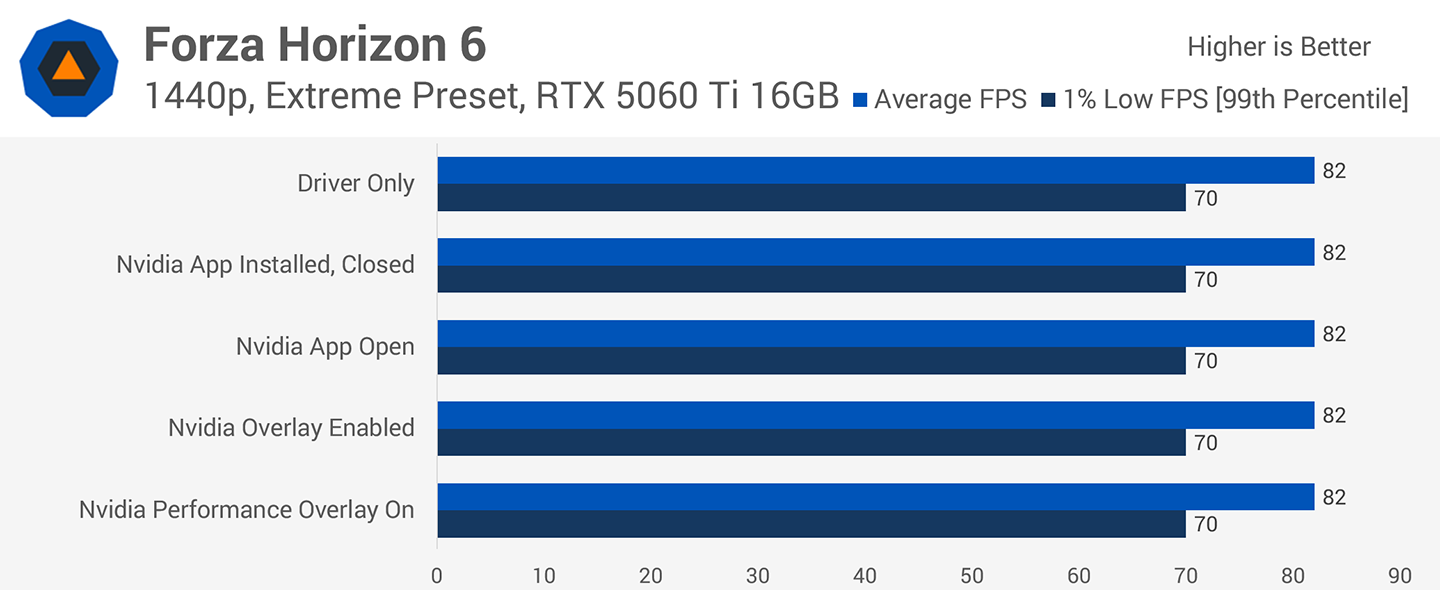
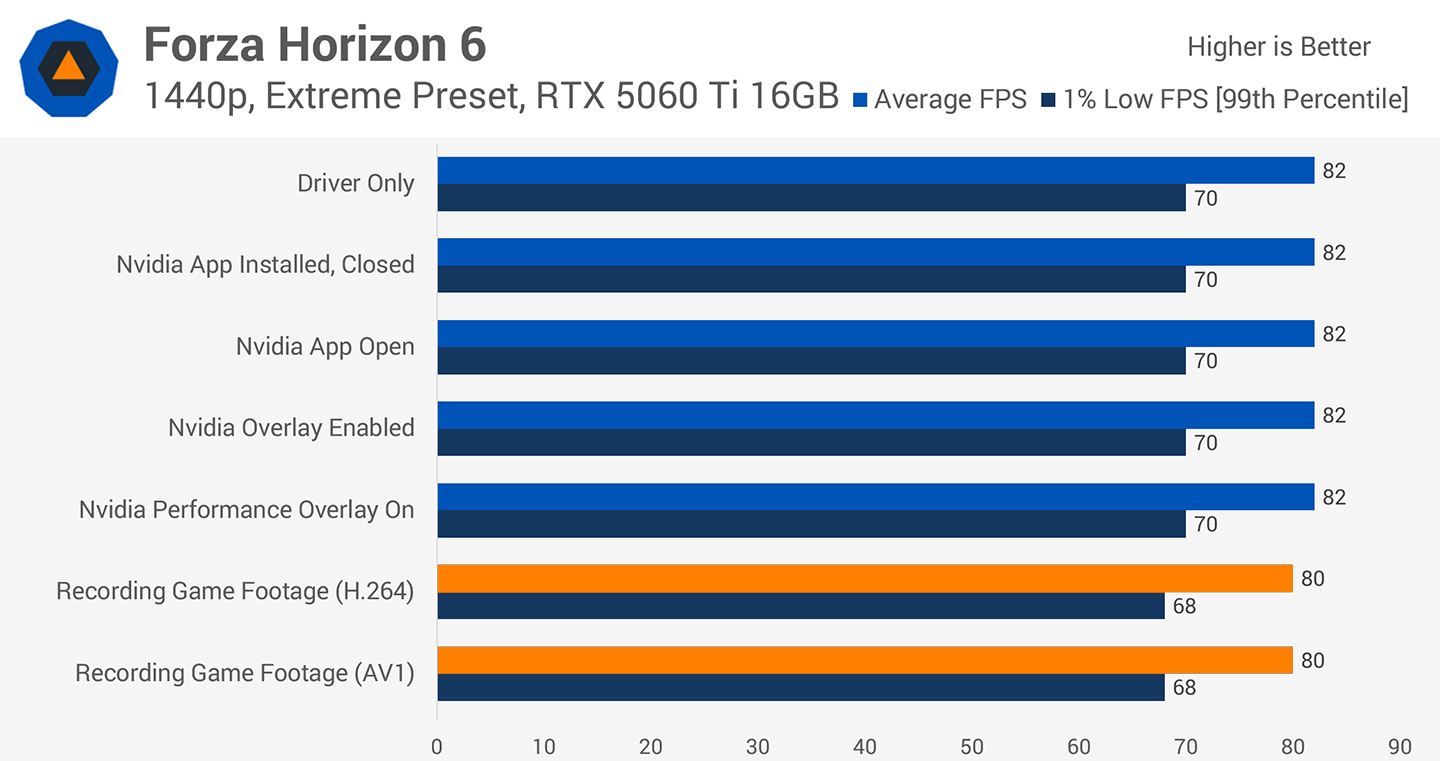
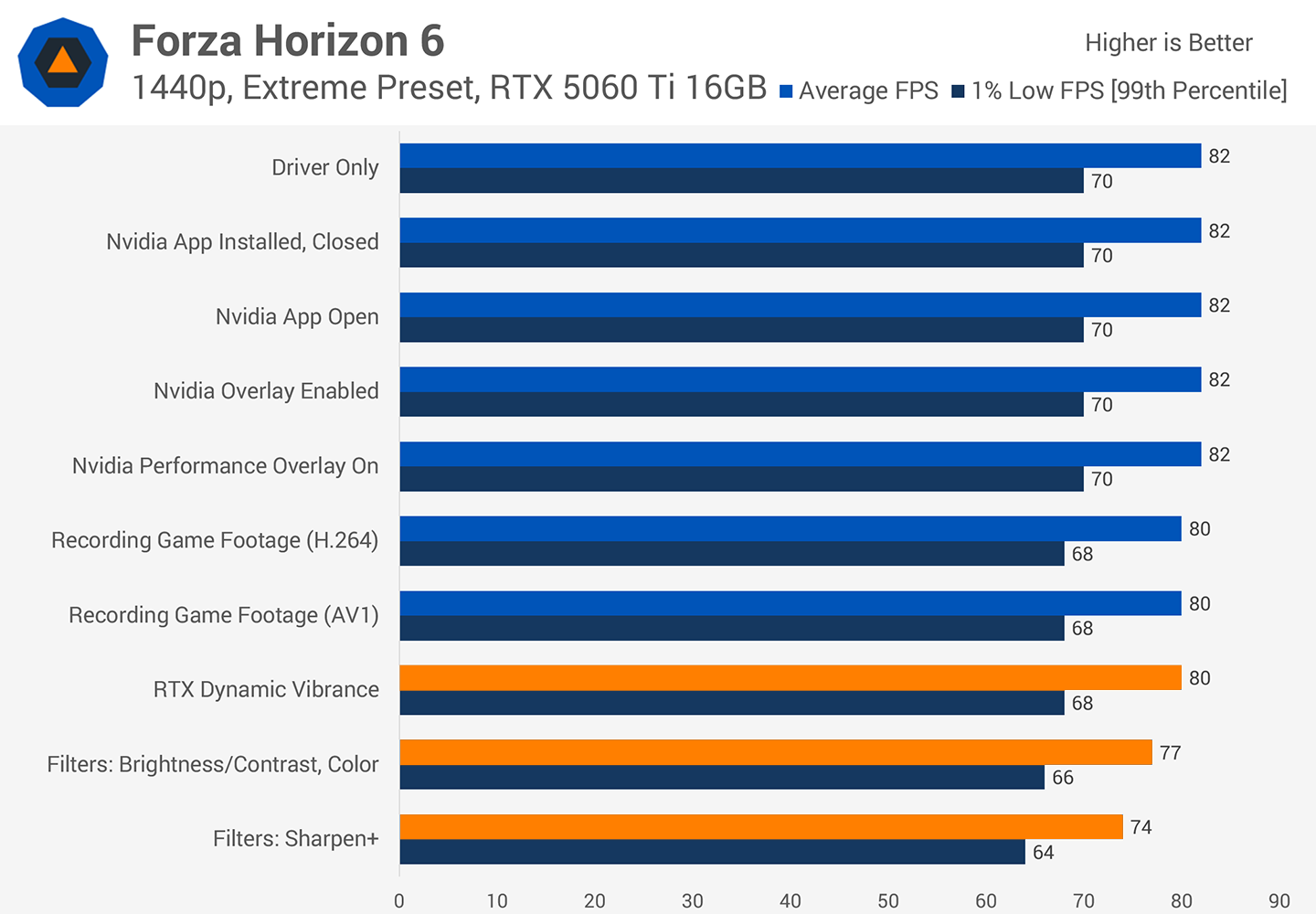
For our initial testing, we used the GeForce RTX 5060 Ti 16GB in our usual Ryzen 7 9800X3D test system, giving us a look at how a modern mid-range GPU handles the Nvidia App. We'll start with the results from Forza Horizon 6 at 1440p using the Extreme preset.
We have three configurations to compare: only the driver installed, with no Nvidia App; the Nvidia App installed and configured, but closed; and the Nvidia App installed, configured, and actively running in an open background window.
In Forza Horizon 6, we saw no performance difference between any of these configurations. There wasn't even a 1 FPS difference in the 1% lows, and these results are averages of three runs. Any variation of less than 1 FPS falls well within the margin of error between runs and would not be noticeable anyway.
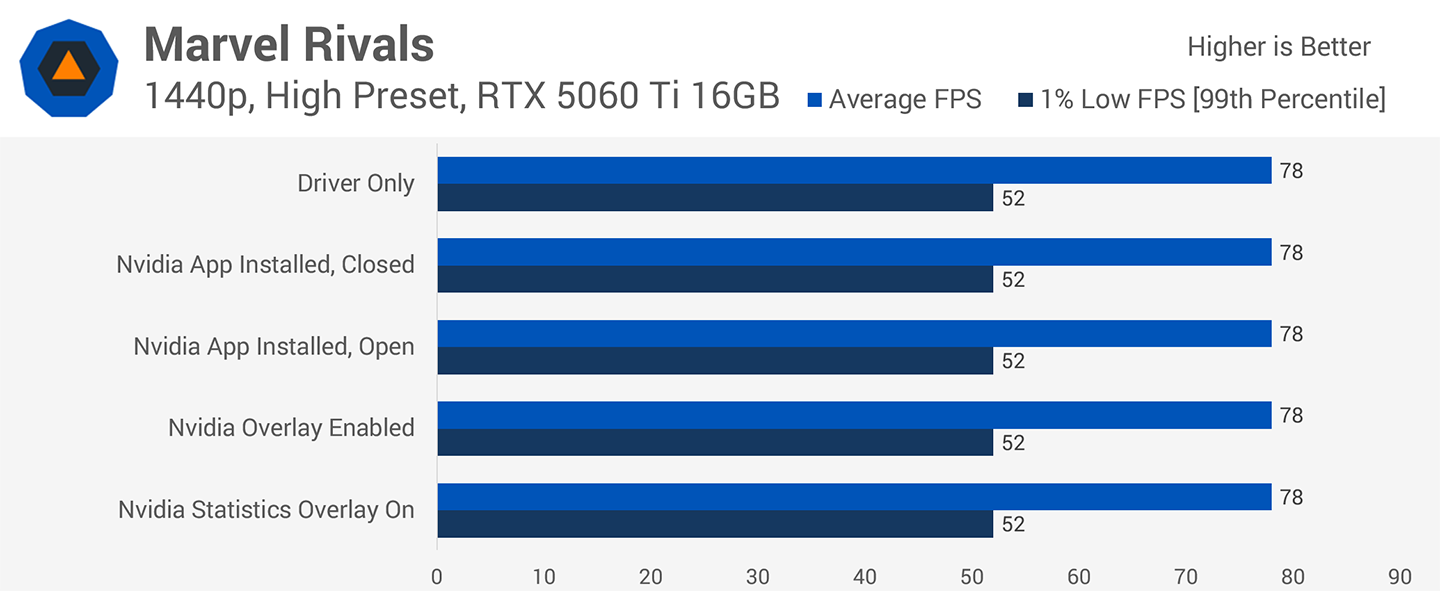
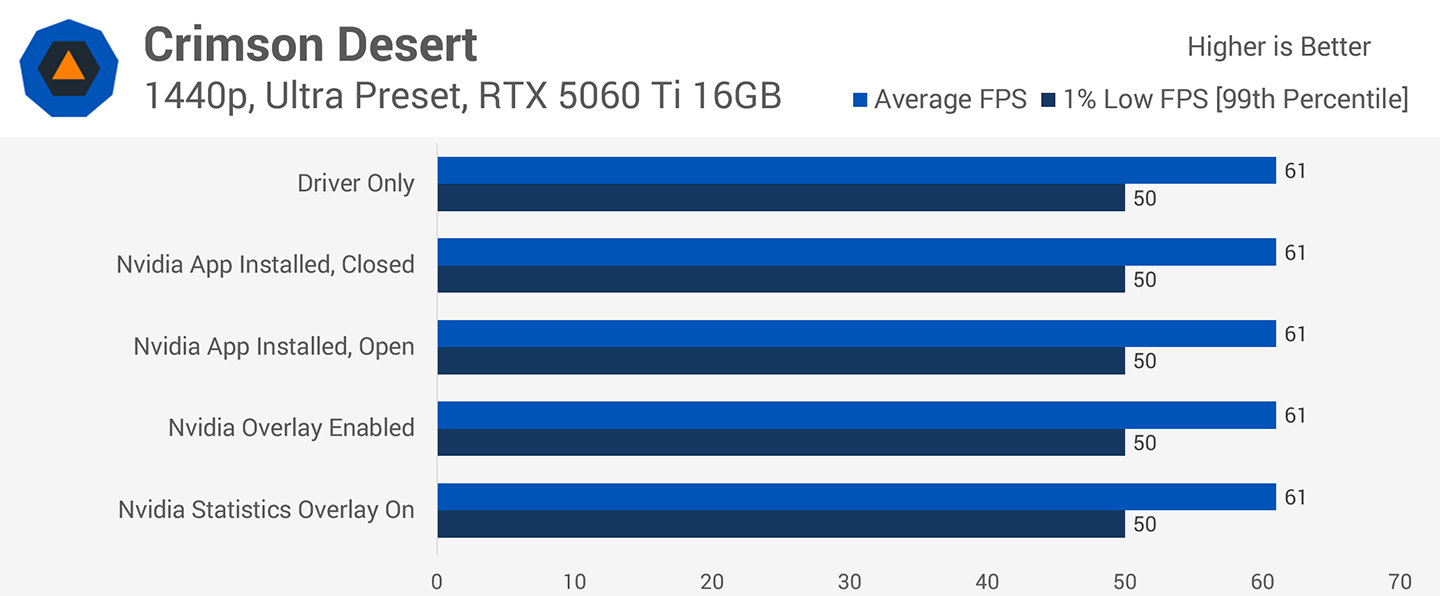
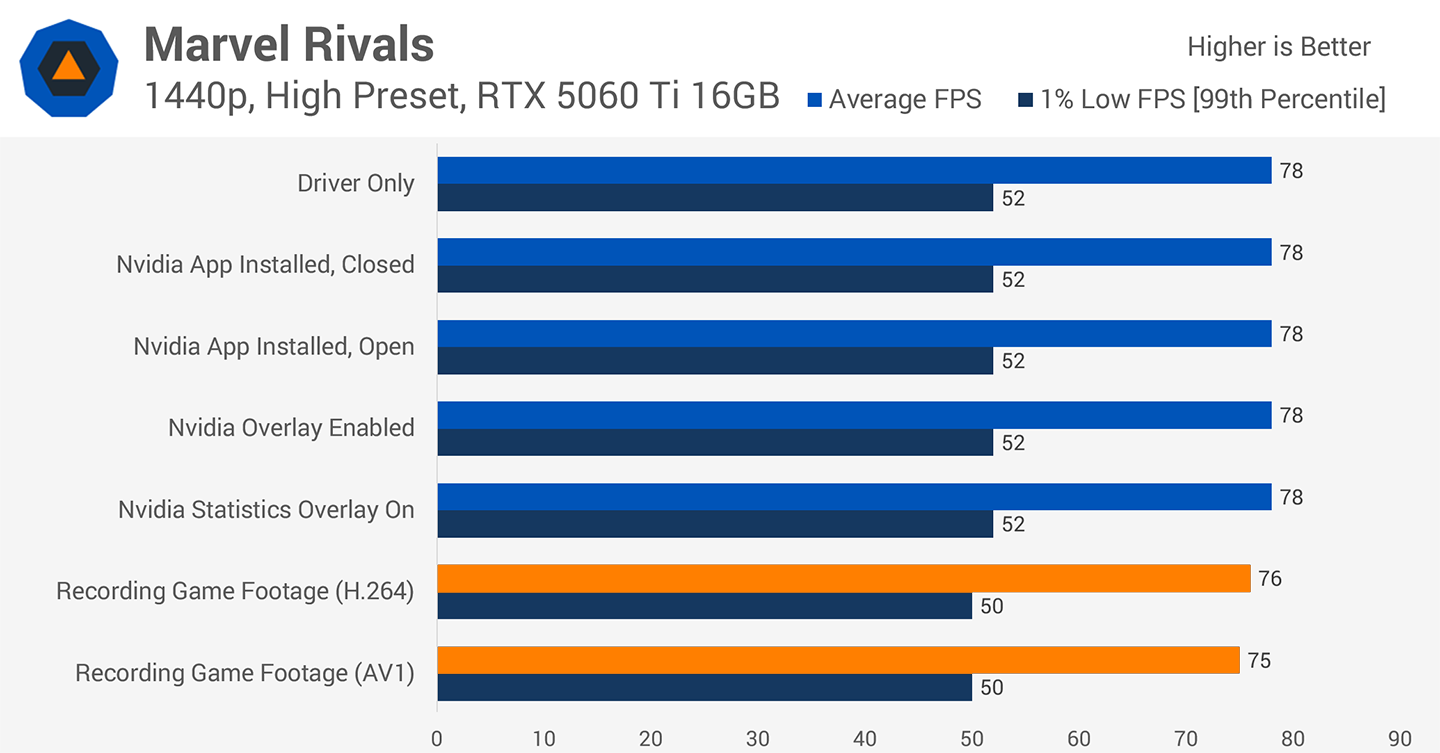
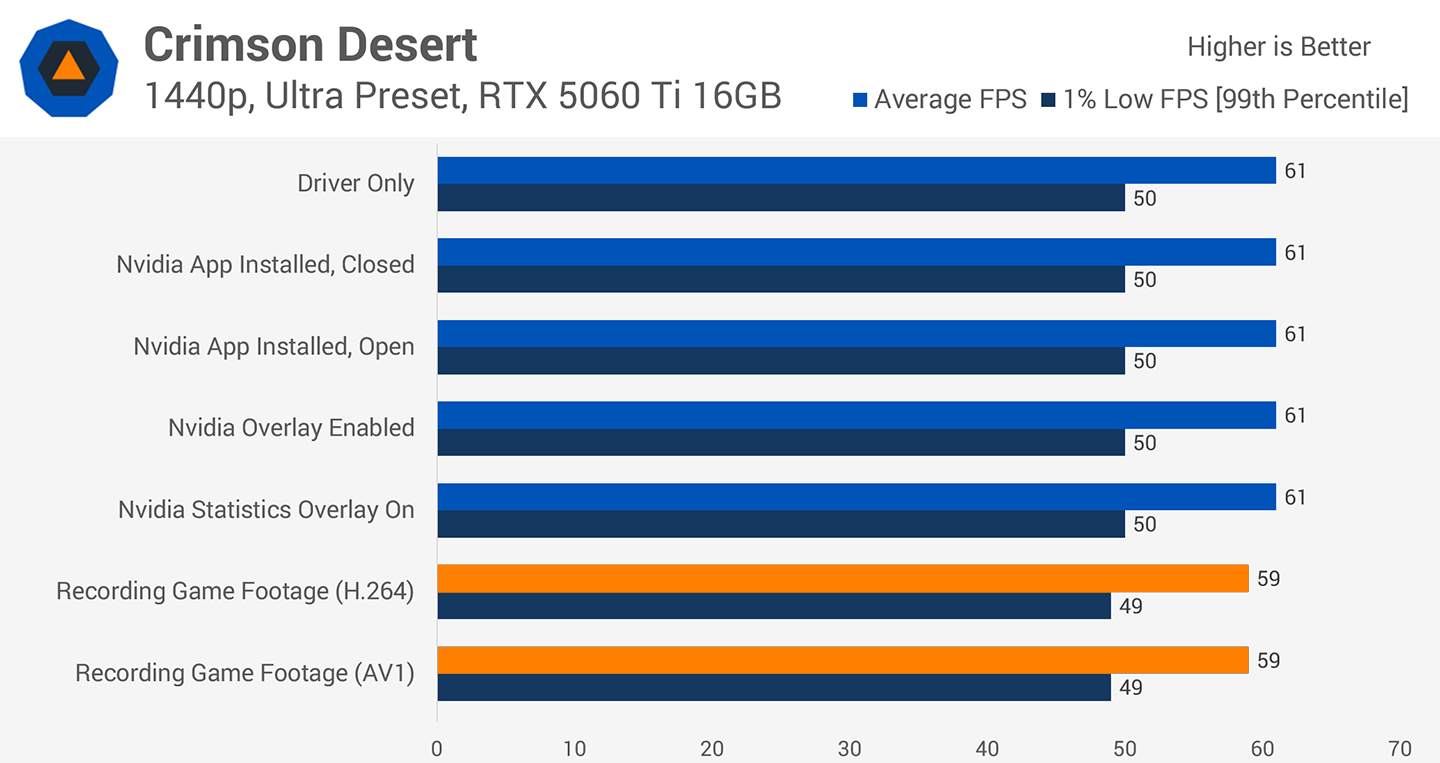
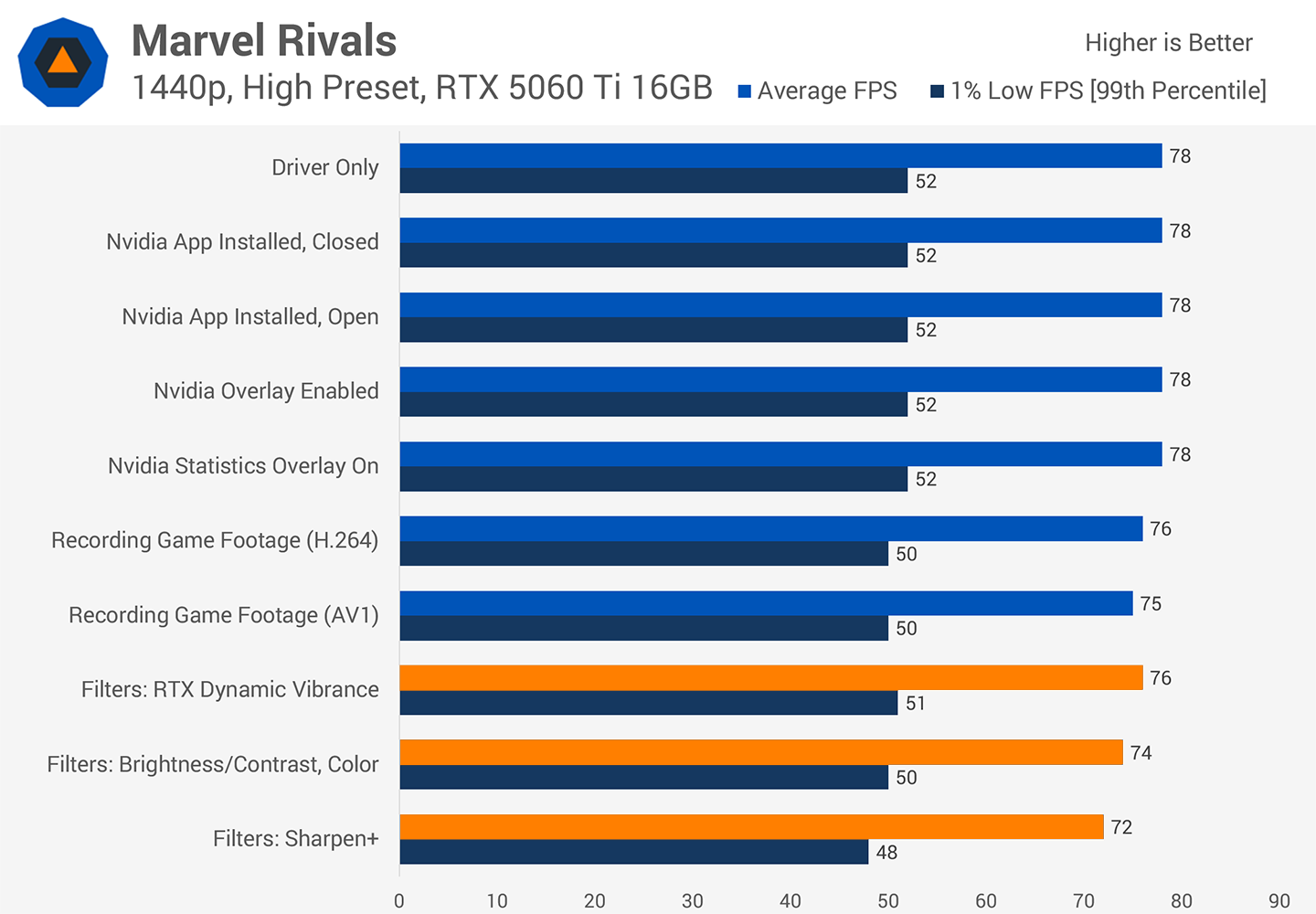
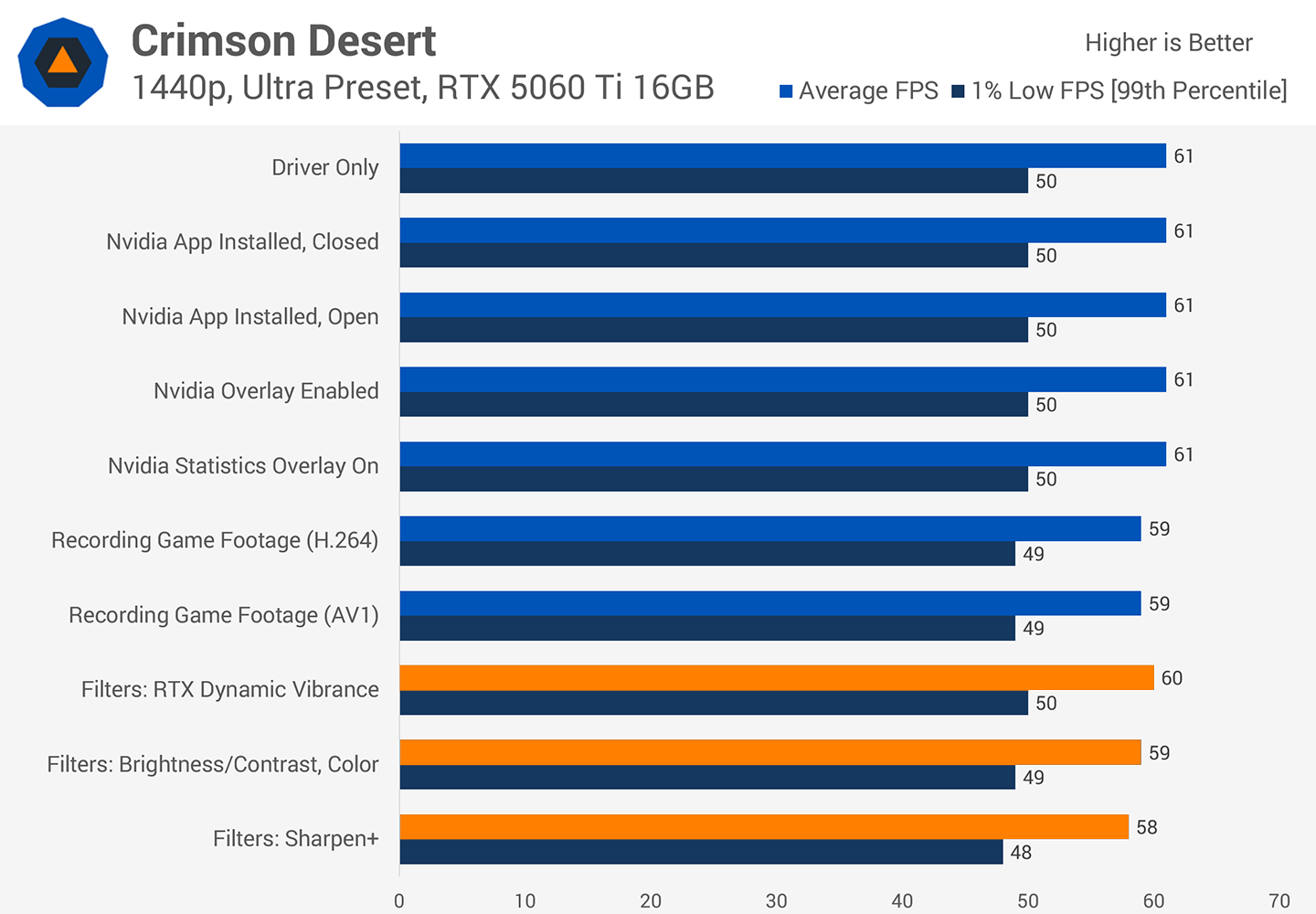
Naturally, we had to try a couple of other games. In Marvel Rivals at 1440p using the High preset, we again saw absolutely no difference between having the Nvidia App open and not having it installed at all. We also tested Crimson Desert at 1440p using the Ultra preset and saw no difference there either.
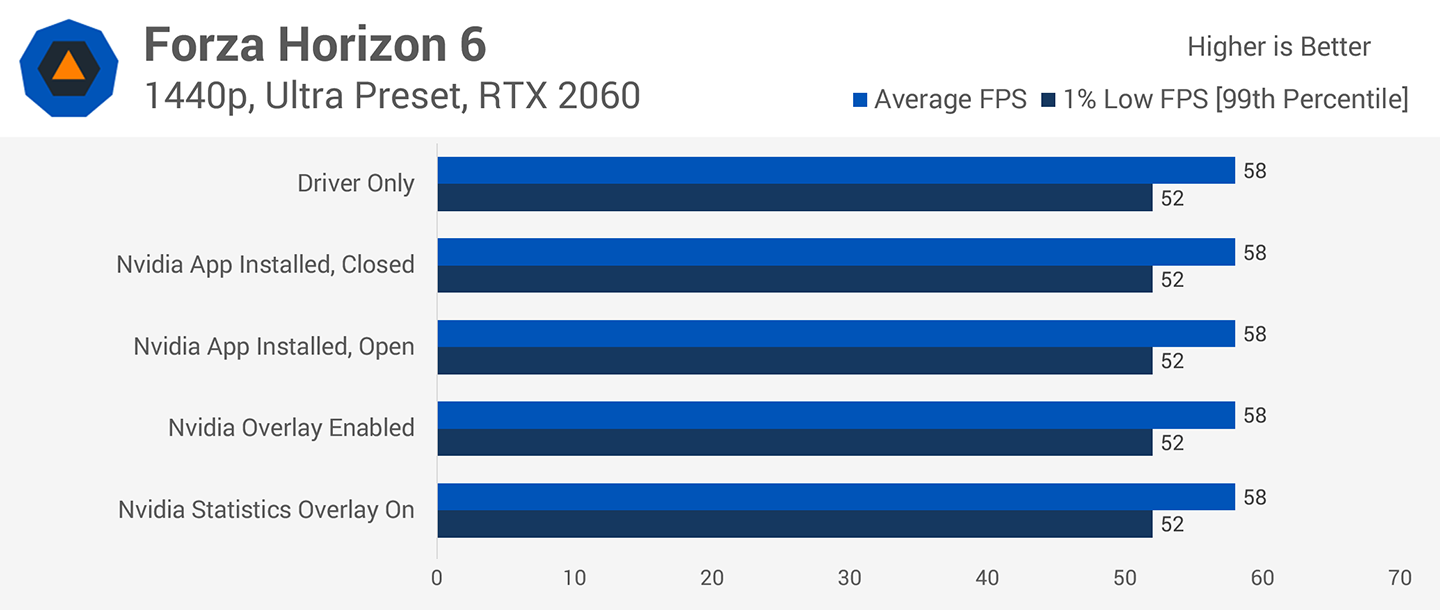
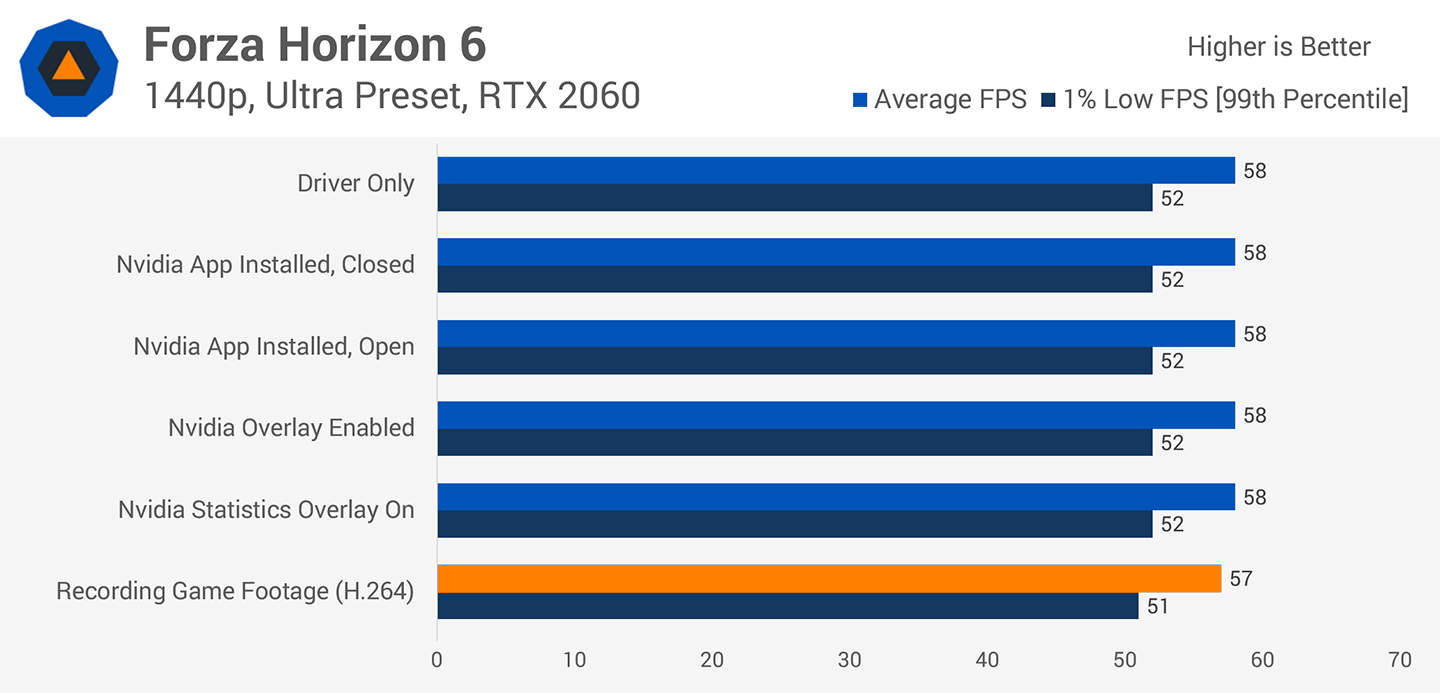
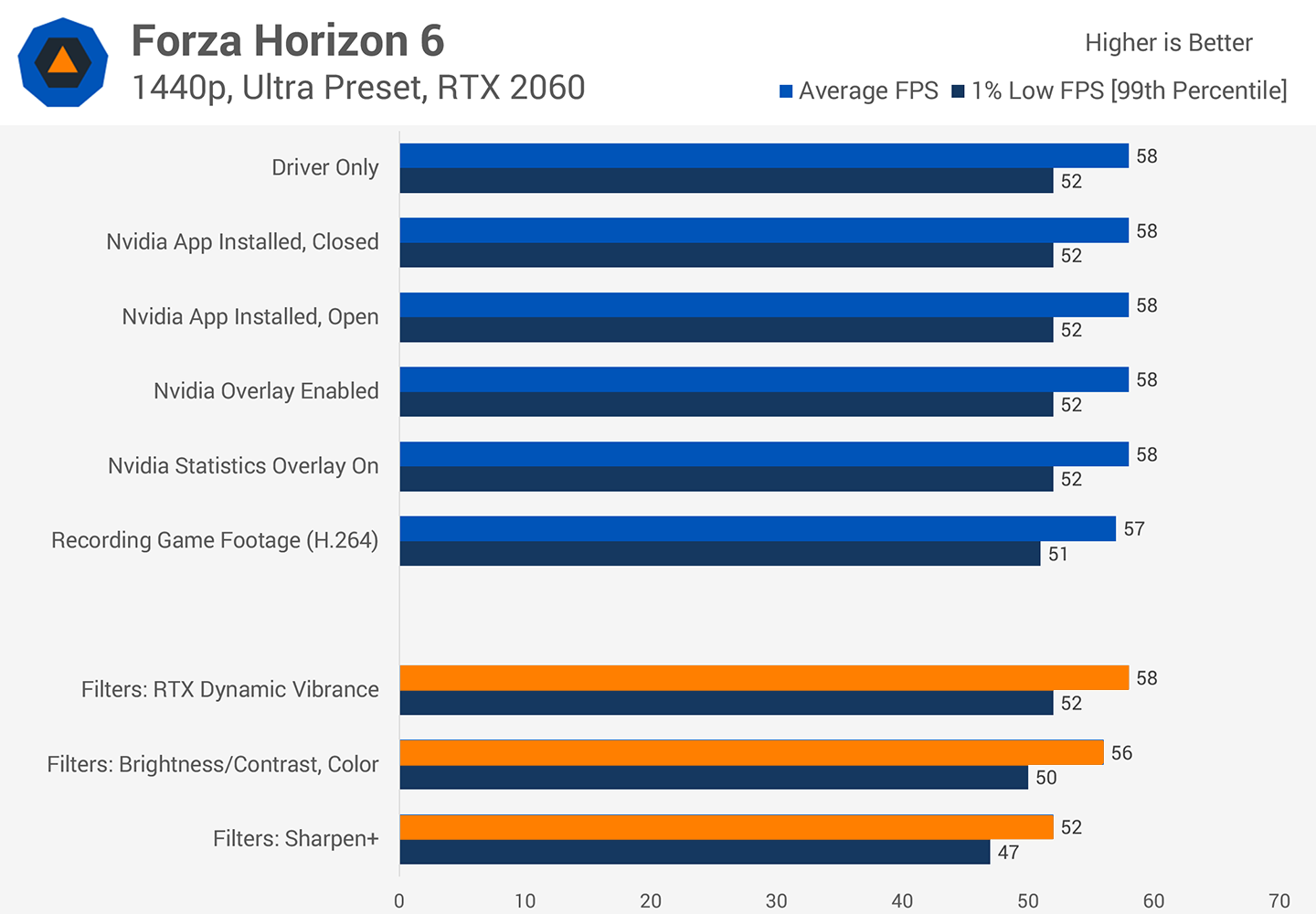
Then we wondered whether the RTX 5060 Ti was simply too powerful to reveal a difference. We installed a GeForce RTX 2060 in the system and retested Forza Horizon 6 using the Medium preset. The RTX 2060 is more than twice as slow as the 5060 Ti, but even with this GPU, having the Nvidia App installed and running made absolutely no difference to in-game FPS performance.
This result should not come as a huge surprise to enthusiast PC gamers. When the Nvidia App is installed and running in the background, it isn't really doing anything, so it doesn't affect gaming performance. It uses a small amount of system memory to keep the interface loaded, but its memory footprint is less than half that of the Steam library interface if you happen to leave Steam running in the background.
The Nvidia App is not processing anything or consuming meaningful CPU or GPU resources merely by being installed or open, so the expected performance impact is zero. That's exactly what we observed.
To be fair, the Nvidia App uses about twice as much system memory when open as the retired Nvidia Control Panel. But we're talking about only a few hundred megabytes, which is negligible, and that figure can be reduced simply by closing the App.
The performance overlay is effectively free
So, what about the features within the Nvidia App and its in-game overlay? So far, our testing has been conducted with the overlay disabled entirely. Let's enable it and test the impact of the Statistics Overlay, a feature found within the main overlay. For testing, we used the Advanced view, which displays the most on-screen statistics of any preset Nvidia offers.
Returning to the RTX 5060 Ti in Forza Horizon 6, we found that enabling and displaying the overlay had no performance impact whatsoever. Showing the in-game frame rate, latency, and GPU utilization statistics did not reduce FPS performance. Neither did leaving the overlay enabled without opening or displaying it.
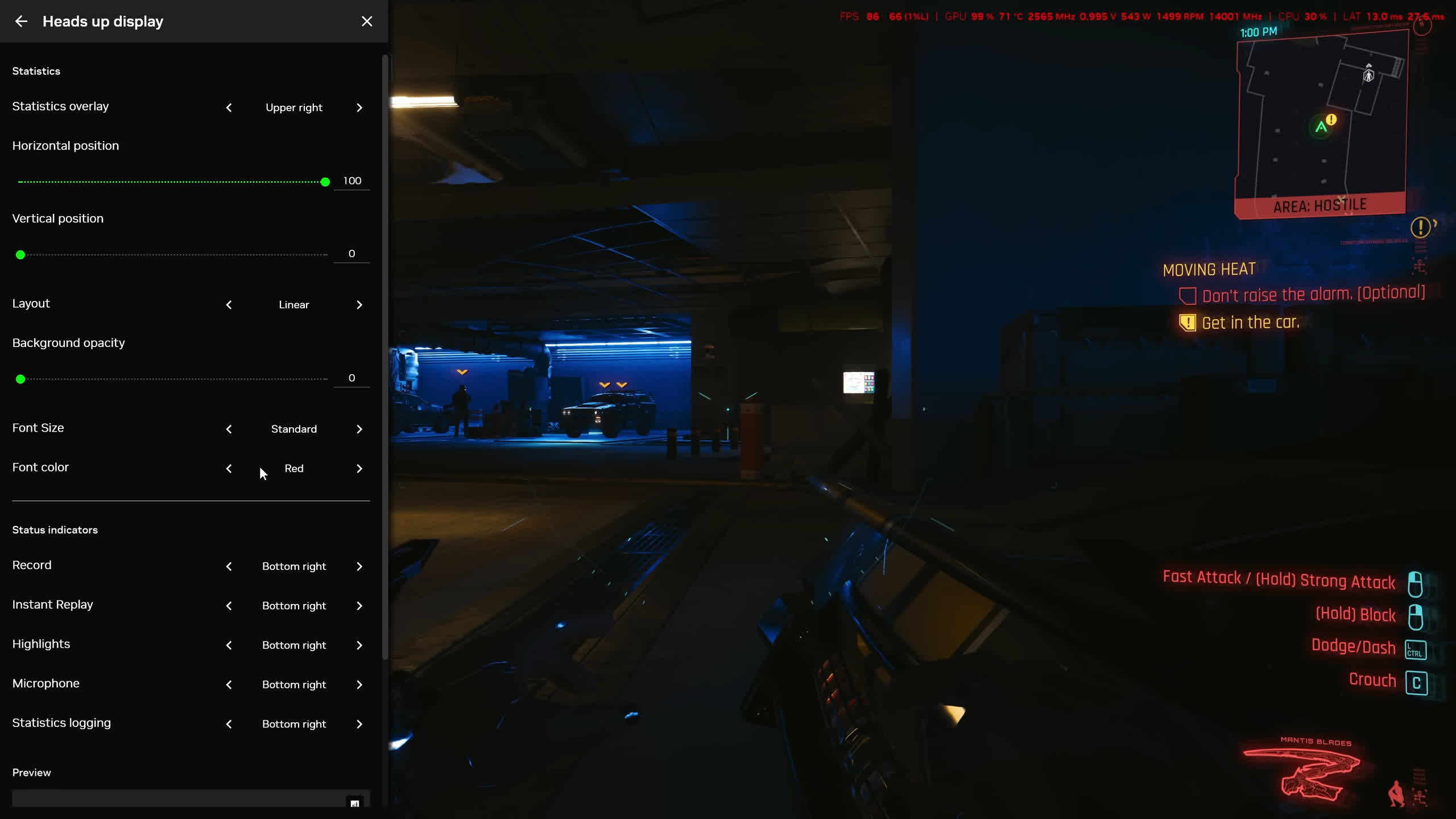
In Marvel Rivals, we also saw no performance difference with the overlay enabled on the RTX 5060 Ti. In Crimson Desert, you guessed it, displaying all those statistics made no difference either. Even on the RTX 2060, the Statistics Overlay did not reduce performance whatsoever. That's relative to a configuration without the Nvidia App installed at all.
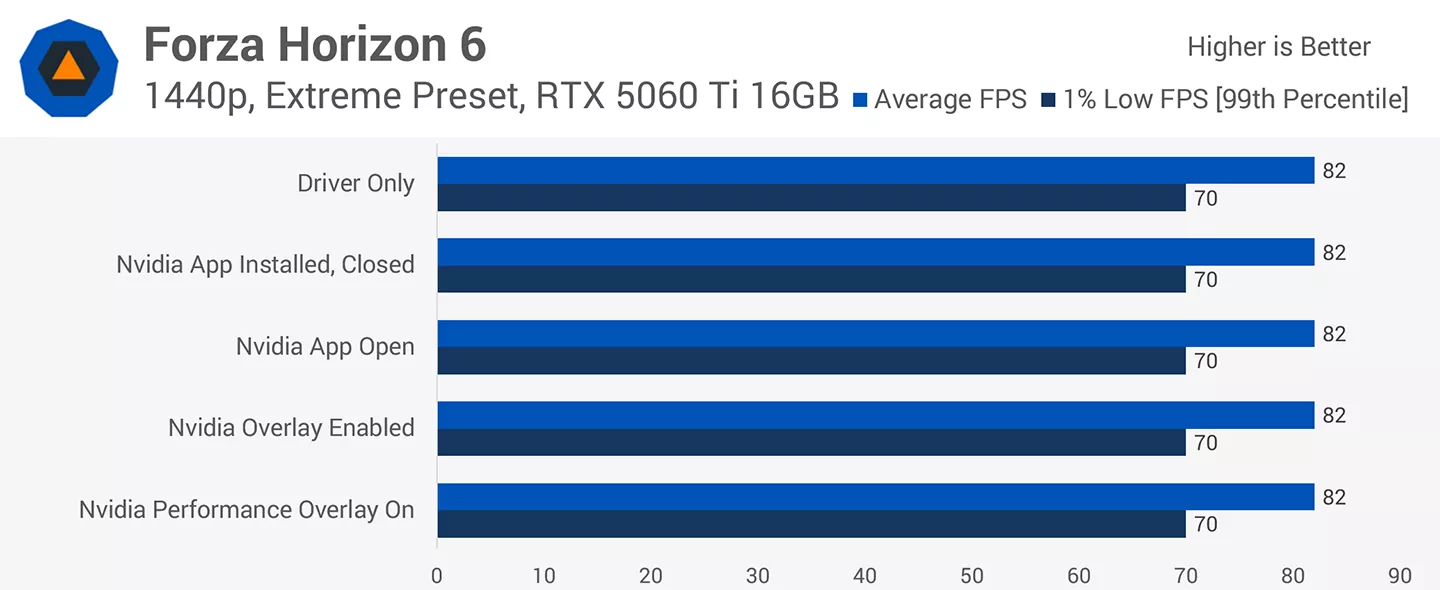
The most we can say is that enabling the overlay and displaying those statistics might have a performance impact, but it is too small to measure. If the impact is too small to measure, it is irrelevant for gamers. As far as we can tell, displaying the overlay has no meaningful impact on CPU or GPU utilization, and it consumes only a small amount of memory, typically a few hundred megabytes. You can safely use the Statistics Overlay without hurting in-game performance.
Recording gameplay has a surprisingly small impact
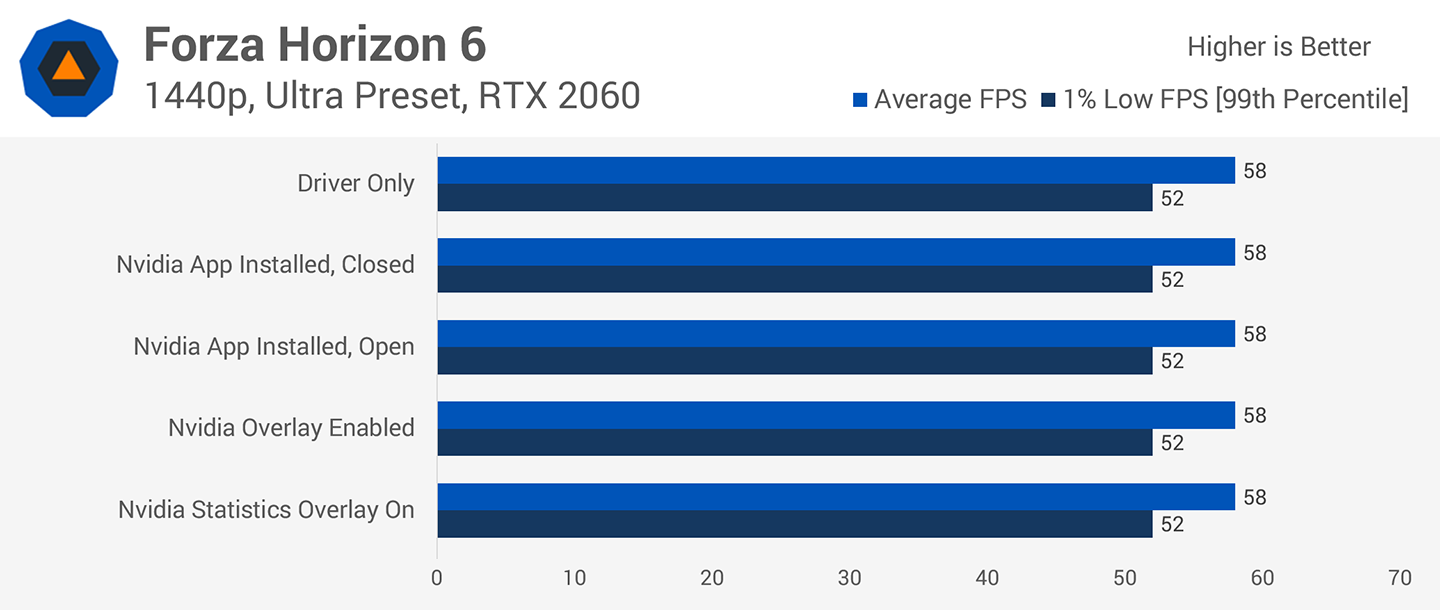
However, certain features in the Nvidia App and its overlay do affect performance when used. One of them is video recording, although you might be surprised by how limited the impact is on a modern GPU.
As for video recording, you might be surprised by how limited the impact is on a modern GPU.
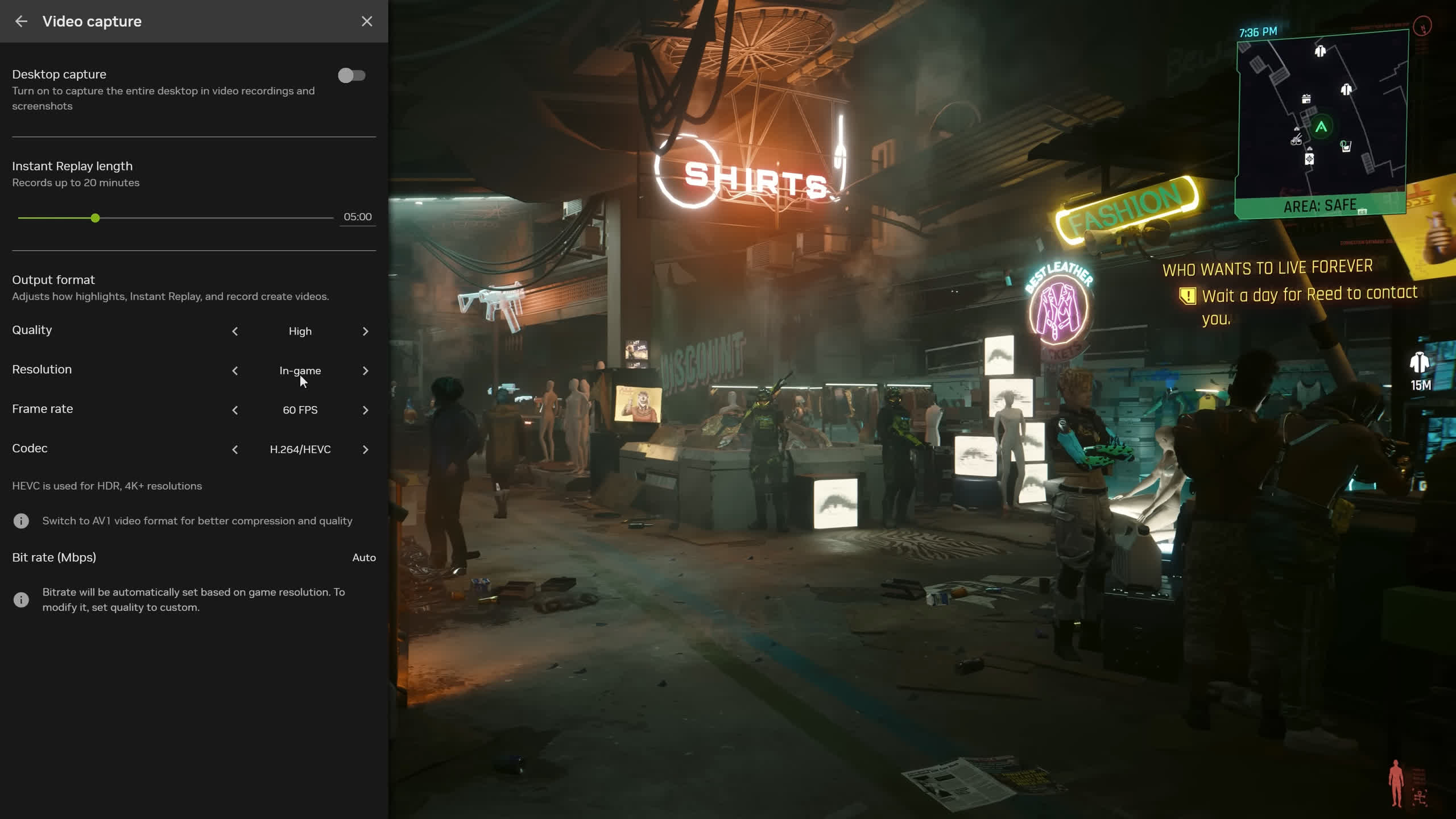
In Forza Horizon 6 on the RTX 5060 Ti, actively recording H.264 video at the game's native 1440p resolution reduced performance by only 2 FPS. This was done using the built-in ShadowPlay recording tool in the overlay. That's a performance impact of roughly 2%, and we observed a similar result using the AV1 recording option.
In Marvel Rivals, video recording again reduced the frame rate by just 2 FPS, which represented a 3% performance hit at this frame rate. In Crimson Desert, you guessed it, we once again recorded a 2 FPS, or 3%, performance hit.
Recording video on the GPU while playing a game does reduce in-game performance, but only slightly. That's because Nvidia uses hardware-accelerated video encoding for this feature, and the NVENC hardware block is separate from the shader cores used to render the game. This dedicated acceleration hardware significantly reduces what would otherwise be a much larger performance hit.
The same applies to the RTX 2060, which saw only a 1 FPS, or 2%, performance hit when recording Forza Horizon 6 at the same 1440p resolution. We could run this test only with H.264 encoding because the Turing architecture used by the RTX 2060 does not support hardware-accelerated AV1 encoding. That feature was first introduced with the Ada Lovelace architecture in the RTX 40 series. Even so, performance on this much slower GPU remained solid while actively encoding video.
Obviously, for the best possible performance, you would not want to encode video and play a game simultaneously. This also means avoiding Nvidia's Instant Replay feature, which continuously records footage and saves the last few minutes of gameplay at the press of a button. However, if you do want to record video, the performance impact is quite small. Sharing gameplay clips or recording an impressive shot in a multiplayer game costs very little FPS these days.
Nvidia's game filters can cost more performance
The other performance-intensive feature in the Nvidia App is game filters. These filters let you adjust a game's appearance by changing colors, contrast, and sharpness through a post-processing pass. This is also how you enable some of Nvidia's RTX features, including RTX HDR, which converts SDR games to HDR, and RTX Dynamic Vibrance, an AI-powered color filter.
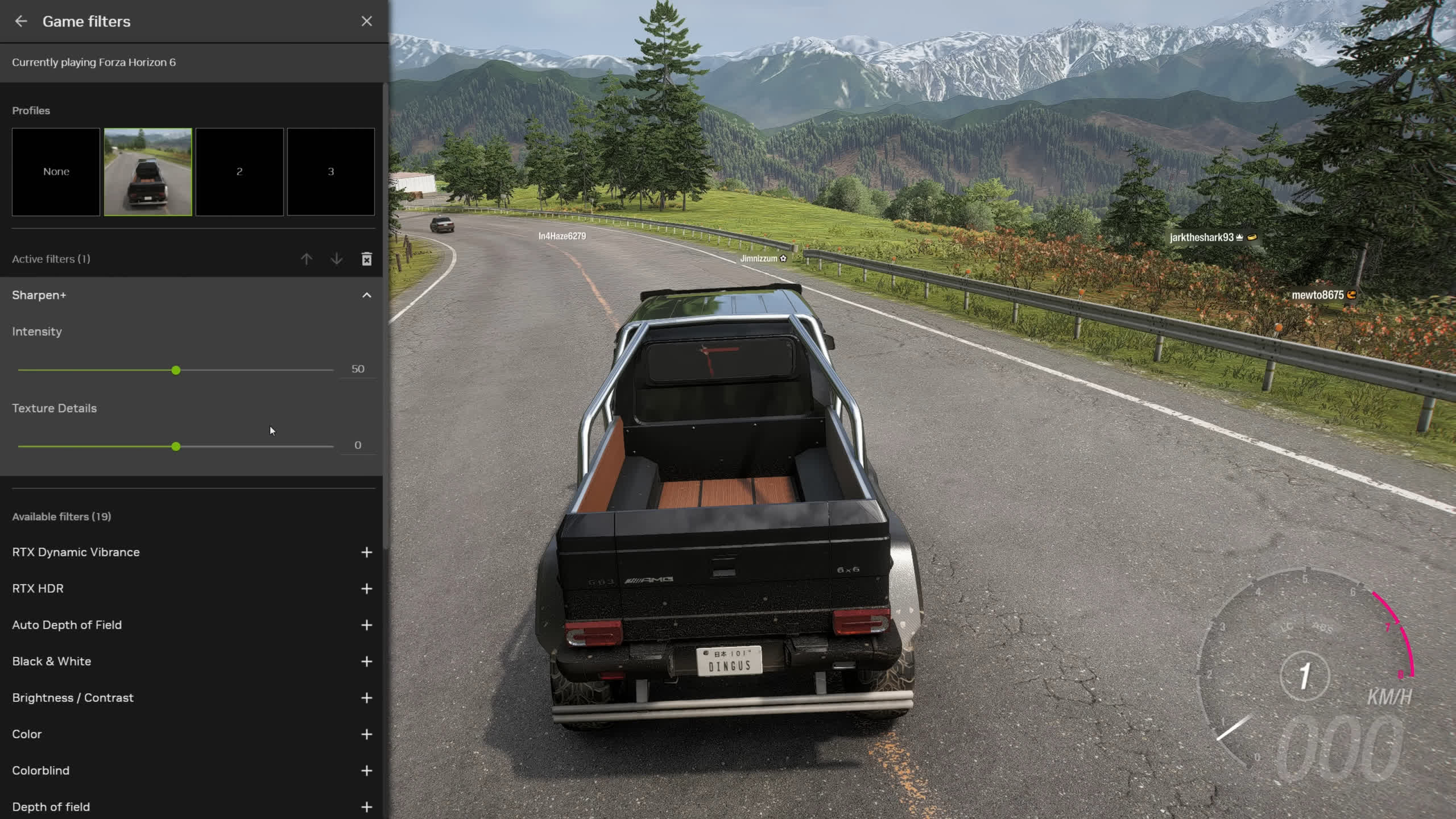
Some filters are much more performance-intensive than you might expect. In Forza Horizon 6 on the RTX 5060 Ti, enabling RTX Dynamic Vibrance had an impact similar to video recording, reducing performance by 2 FPS. However, using the Brightness/Contrast and Color filters simultaneously reduced performance by 5 FPS compared with having no filters enabled. The Sharpen+ filter, Nvidia's most advanced post-processing sharpening effect, cost 8 FPS and reduced overall performance by a significant 10%.
In Marvel Rivals, RTX Dynamic Vibrance also produced a 2 FPS performance hit, in line with video encoding. Using the Brightness/Contrast and Color filters resulted in a 5% performance decrease, while the Sharpen+ filter reduced performance by 8%. In Crimson Desert, RTX Dynamic Vibrance was slightly less demanding than video recording. The Brightness/Contrast and Color filters reduced performance by 3%, while Sharpen+ had its smallest impact in this title, causing a 5% performance drop.
These filters had a similar impact on the RTX 2060, so slower GPUs are not necessarily hit disproportionately hard by in-game filters. RTX Dynamic Vibrance produced no meaningful performance loss on this GPU compared with running no filters, while the Brightness/Contrast and Color filters reduced performance by 3%. The Sharpen+ filter remained quite demanding, however, causing a 10% performance hit, the same result we saw on the RTX 5060 Ti 16GB.
Again, if you want to use Nvidia's filters, by all means do so. The performance cost is not unreasonable in many cases, but it is not zero, particularly when stacking multiple filters or using the most demanding options. Personally, I don't find the output of these filters especially impressive, and I tend not to use them. Still, they can be a useful feature, particularly in multiplayer games that do not allow more extensive modding or post-processing injectors.
Not the performance problem people think it is
This testing should settle the debate over whether the Nvidia App carries an inherent performance cost. Simply having the App installed or using some of its basic functionality has no impact on in-game performance whatsoever.
You can comfortably install it without worrying about lost FPS. Even the Statistics Overlay has no measurable impact on performance, regardless of whether you use a modern, powerful GPU or something older and slower, such as an RTX 2060. This is not a valid reason to avoid the Nvidia App.
Some features within the Nvidia App do affect performance, including video recording and game filters. In most cases, however, the impact is small. Video recording in particular is surprisingly efficient these days, to the point that you can play a game and record footage simultaneously without really noticing the performance cost.
We totally understand where the idea that installing or using the Nvidia App hurts performance comes from. It is a background application that is not required for gaming, it performs tasks such as monitoring performance and running telemetry, and there is always concern that background processes will take resources away from a game and reduce performance.
We see similar comments all the time about background apps and how our "clean" test systems do not have as much junk running in the background as a typical gaming PC, potentially making them less representative of "real-world" performance.
The reality is that modern gaming PCs are powerful systems with plenty of available resources. A PC can easily run a game and a lightweight application such as the Nvidia App simultaneously without breaking a sweat. Background tasks become problematic only when they perform significant amounts of processing or when so many are running that constant context switching becomes an issue. These days, having a couple of basic apps open, especially when they provide useful features, is perfectly fine while gaming.