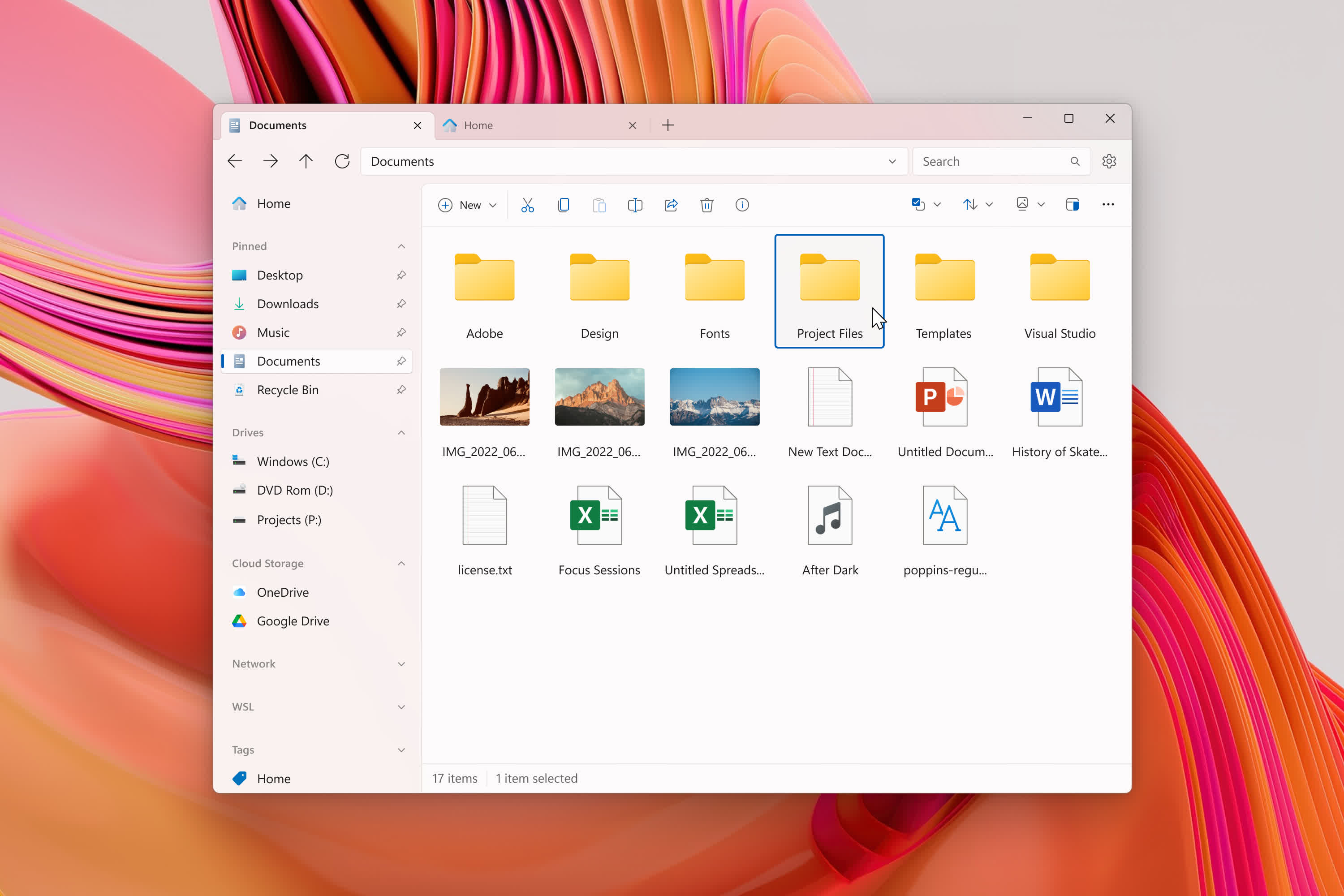
Files is a modern file manager that helps users organize their files and folders. Our mission with Files is to build the best file manager for Windows, and we're proud to be building it out in the open so everyone can participate.
User feedback helps shape the features we work on, & the bug reports on GitHub help to make Files more reliable. Built and maintained by the open-source community, Files features robust multitasking experiences, file tags, deep integrations, and an intuitive design.
What is the main difference between Files and Windows File Explorer?
Windows File Explorer is the built-in file manager that comes with Windows, offering basic file navigation and management. Files, on the other hand, is an open-source, modern alternative designed to extend Explorer with tabs, dual-pane view, tags, and better customization.
Can I make Files replace File Explorer as the default file manager?
Yes, you can make Files replace File Explorer as your default file manager. In the Advanced settings, there's an option called "Open Files on system startup / Replace Explorer". Enabling it lets Files intercept system calls that normally launch File Explorer (like pressing Win + E or opening a folder from the taskbar). Once it's turned on, any action that would normally open File Explorer will instead launch Files. You can turn this setting off at any time if you want to go back to the default.
Does Files support features that File Explorer doesn't?
Yes, Files adds many productivity-focused features missing in Explorer, such as:
- Tabbed browsing (multiple folders in one window).
- Dual-pane view for side-by-side management.
- Tags to organize files with colors and labels.
- Customizable themes and backgrounds.
- Git integration and advanced previews.
Is Files faster than File Explorer?
File Explorer is lightweight and deeply integrated into Windows, making it very stable. Files prioritizes usability and modern design, so it may use slightly more system resources but saves time for power users with its multitasking features.
Features
Power meets beauty
Explore a beautiful Windows-first design. Manage all your files with increased productivity. Work across multiple folders with tabs. And so much more.
Seamless cloud integration
Integration with cloud services such as OneDrive, Google Drive, and iCloud allow you to manage your documents and photos in the cloud, right from the sidebar.
File preview
Preview documents, photos, and more without opening them. Support for rich previews, syntax highlighting, markdown and video playback is all built in.
Tagged Files and Folders
Quickly mark and organize your files and folders for later by assigning them colored and named tags for easy identification. You can even add your own custom tags!
Multitask with tabs
Avoid multiple windows and keep your desktop clutter-free. Files features a browser-like tabbing interface complete with keyboard shortcuts.
Distinctly personal
Have it your way. Files features a fully customizable user interface, right down to the colors and materials. Explore themes created by the community or dive right into the docs and create your own.
More Features
- Tabs
- Cloud integration
- Shell extensions support (in the right click context menu)
- Column view browsing
- FTP support
What's New
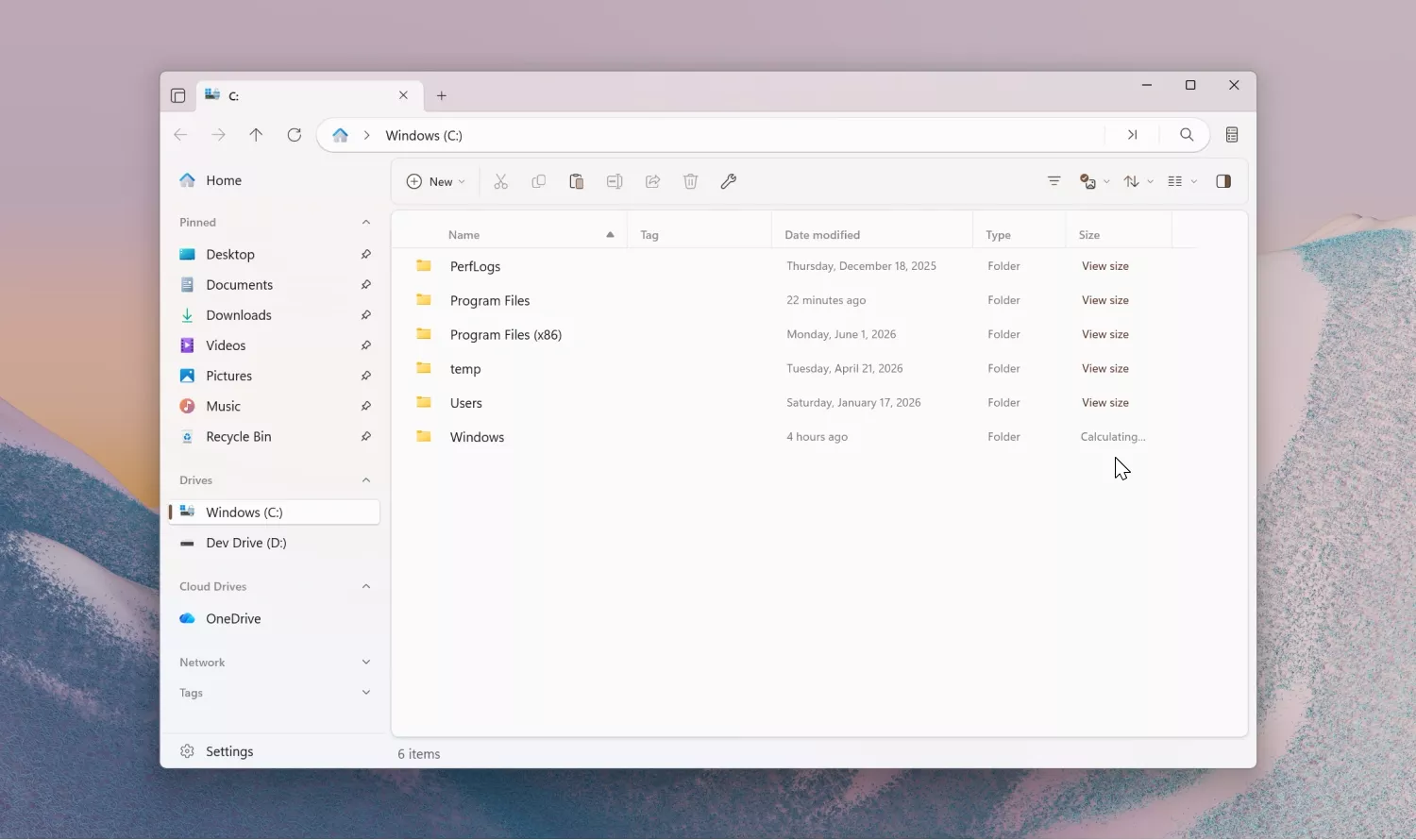
Calculate folder size on demand
- When the Calculate folder sizes option is turned off in Settings, a View size button now appears in the Size column. Clicking it will calculate the size of that folder on demand.
Retain selection across layouts
- When switching between layouts, the previously selected item now stays selected, so you don't lose your place when changing layouts.
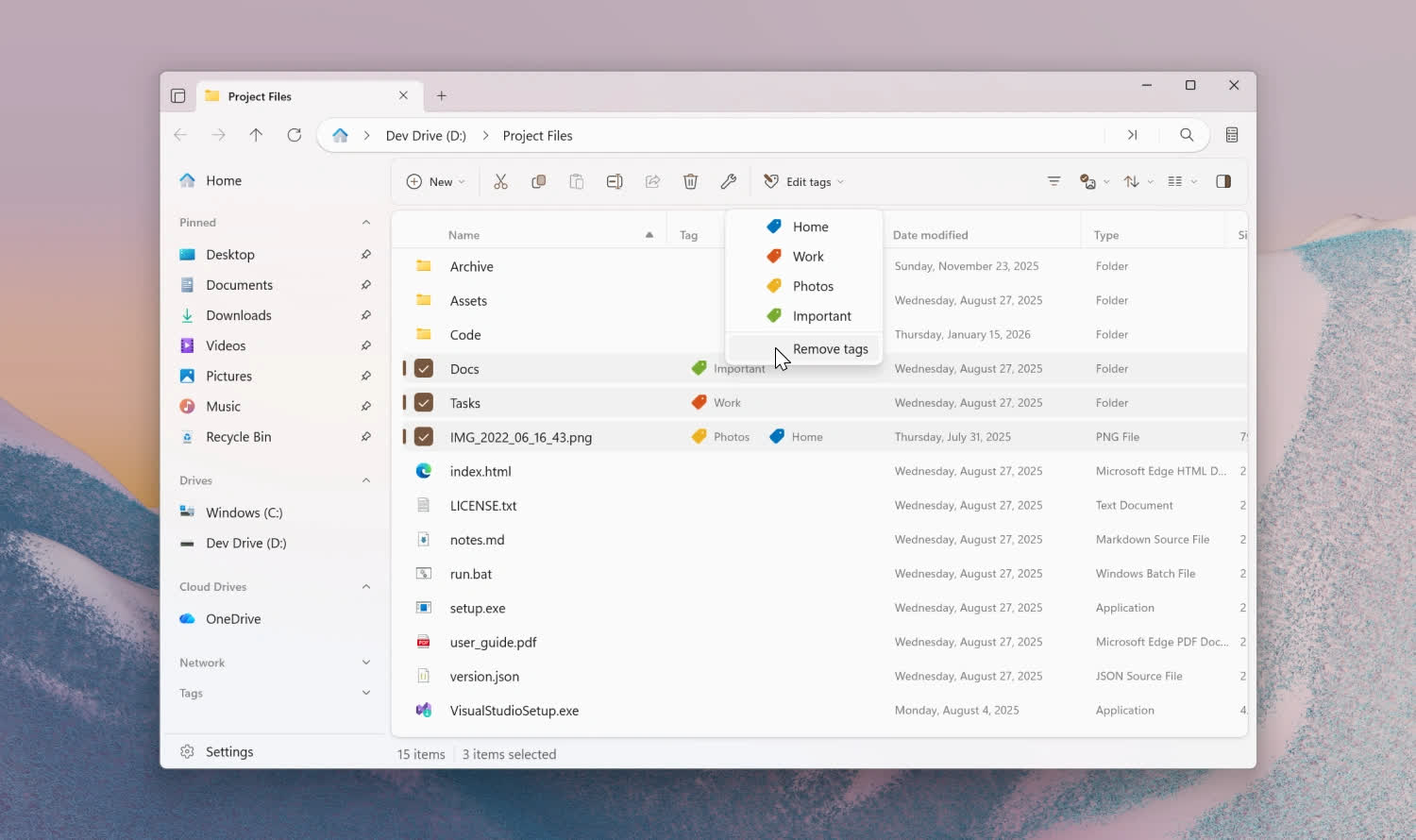
Remove all tags from a file
You can now quickly clear every tag assigned to one or more files. There are a few ways to use the new action:
- From the context menu – right-click an item, open the Tags submenu, and choose Remove tags.
- From the toolbar – when the Edit Tags button is pinned to the toolbar, the same option appears in its menu.
- From the Command Palette – open the Command Palette and search for Remove tags. You can also assign your own keyboard shortcut to it from Settings.
If you haven't pinned the Edit Tags button to the toolbar, you can add it in a few steps:
- Right-click the toolbar and select Customize toolbar.
- Expand the File System group on the left.
- Drag Edit Tags… to the list of added toolbar items.
Updated OneDrive icon
- The OneDrive icon has been updated to the latest version. Files now loads it directly from the OneDrive executable, so it always matches the icon used by OneDrive itself.
Fixes
- Fixed an issue with extracting tar archives.
- Fixed an issue where the Signatures page would occasionally cause a crash.
- Fixed an issue where the Play action wasn't available when a single media file was selected.
- Fixed an issue where Smart Extract would extract archives to the wrong location when switching tabs.
- Fixed an issue where tag search excluded folders when grouping by type.
- Fixed an issue where thumbnails would sometimes fail to refresh after a file was modified.
- Fixed an issue where a BitLocker locked drive wasn't displayed.
Previous Release Notes:
Reduced package size
We reduced the package size by over 180 MB.
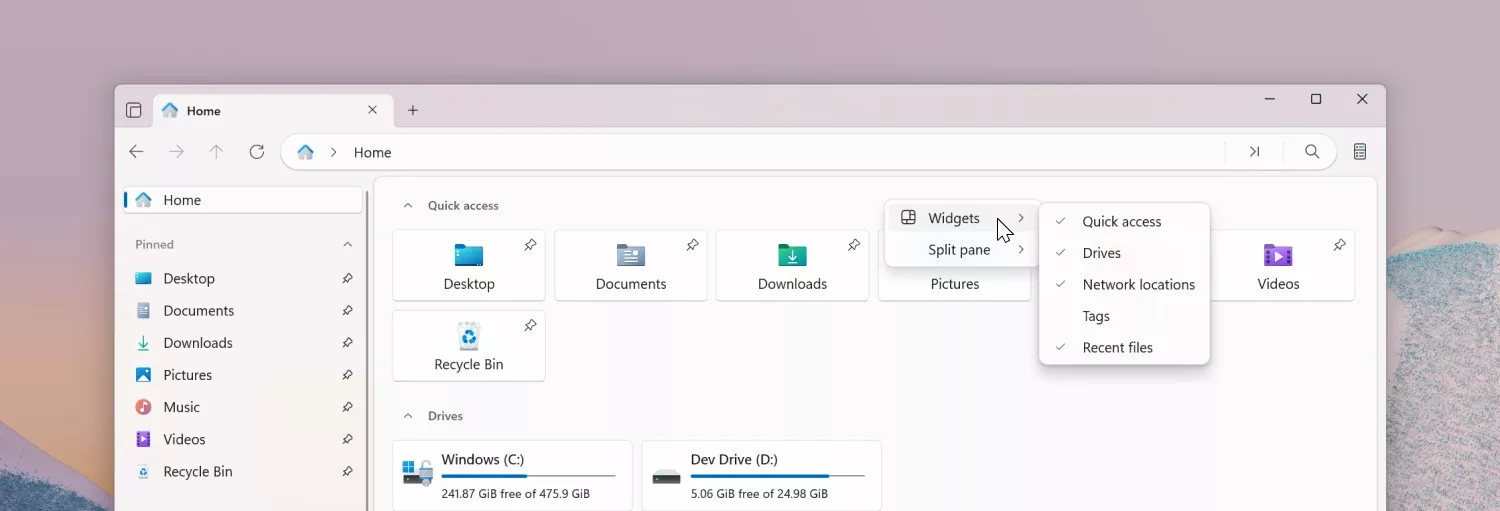
Right Click Context Menu
You can now access quick actions by right clicking on the Home page, including options like toggling widgets and adding new panes. This dedicated menu makes it easier to customize your Home layout without leaving the page.
Tabs
Added path hints for tabs with the same name, so it is easier to distinguish similarly named folders opened from different locations.

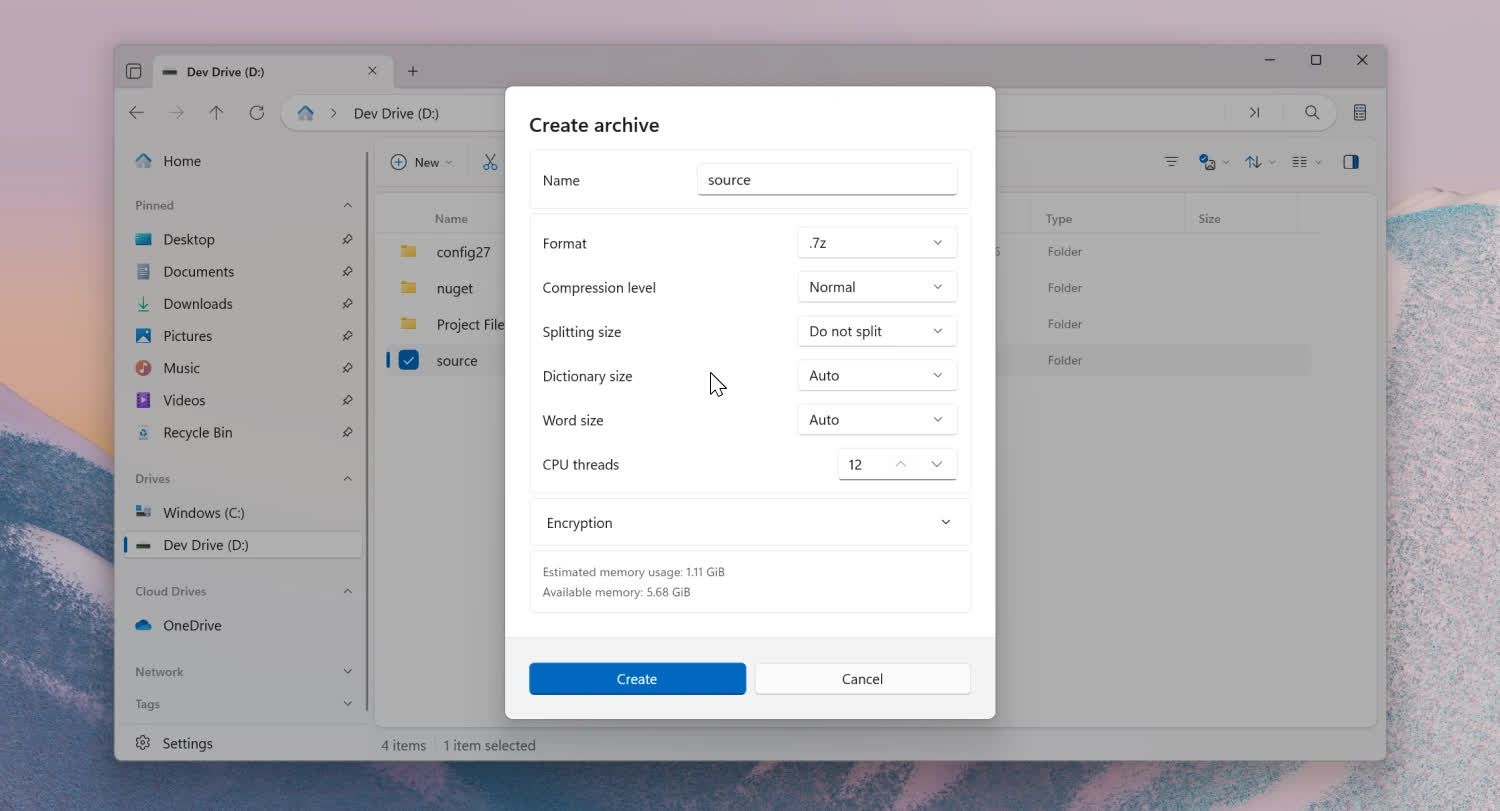
7z Options
Added 7z dictionary and word size options to the compression workflow. These advanced options provide more control when tuning archive size versus compression speed.
Compression Attributes
Added support for applying compression attributes across multiple selected files from the Properties window.
Details Pane
The Details Pane now includes a storage overview for Cloud Drives.
Sidebar Drag and Drop
Added support for dragging sidebar items into other apps.
Sidebar Toggle Action
Added a dedicated action to toggle the sidebar, giving you a faster way to show or hide navigation space when you want to focus on content. You can also access this action through the Ctrl + B keyboard shortcut.
Scrolling
Added middle click to scroll, making navigation smoother in long directories and providing another familiar input method.
Fixes
- Fixed wrong scroll position when switching out of semantic zoom.
- Fixed issue with opening images in Microsoft Photos.
- Fixed an issue where git remotes pointing to a local bare repository were not displaying.
- Fixed an issue where thumbnails didn't load for MTP devices.
- Fixed an issue where the Third Party Libraries section was cut off.
- Fixed Status Center display when canceling extraction.
- Fixed an issue with opening Control Panel from desktop.
- Fixed the size of the Settings dialog close button.
- Fixed an issue where the Run With PowerShell action wasn't disabled in Recycle Bin.
- Fixed tooltip labels on the Tags settings page
PowerToys Peek
We're excited to be adding support for PowerToys Peek, a popular tool for previewing files on Windows. If you already have PowerToys installed, there's no need for additional setup. Just select an item in Files, and press the space key to see a preview. To learn more about PowerToys Peek, please see their documentation site https://learn.microsoft.com/en-us/windows/powertoys/peek.
Right Click Context Menu
We added copy functionality to the context menu when right clicking the sidebar and home page widgets.
Faster File & Folder Creation
When creating a new file or folder, a default name is now prefilled and automatically selected. This allows you to quickly create files without having to manually enter a name, while making it easy to replace if you prefer to set one yourself.
Omnibar
We added a shadow to the Omnibar suggestions flyout to better align with WinUI styling.
Status Center
Added text wrapping for longer folder names in the Status Center.
Tags
Added support for AND OR operators when searching for tags.
Fixes
- Fixed a crash that would occur when resizing the window in Dual Pane mode.
- Fixed a crash that would occur when switching git branches during a merge conflict.
- Fixed an issue where PNG-based .ico files with black backgrounds displayed incorrectly in the sidebar.
Previous Release Notes:
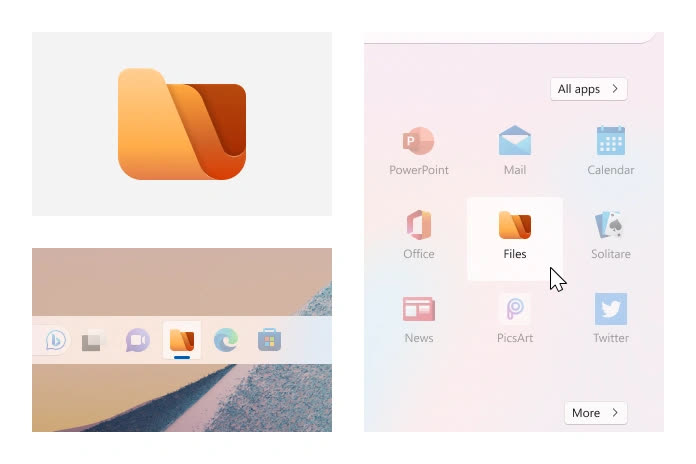
Updated icon
Files v4.0 introduces a refreshed logo design with richer color, ensuring it feels right at home with other Fluent designed apps from Microsoft.
Omnibar
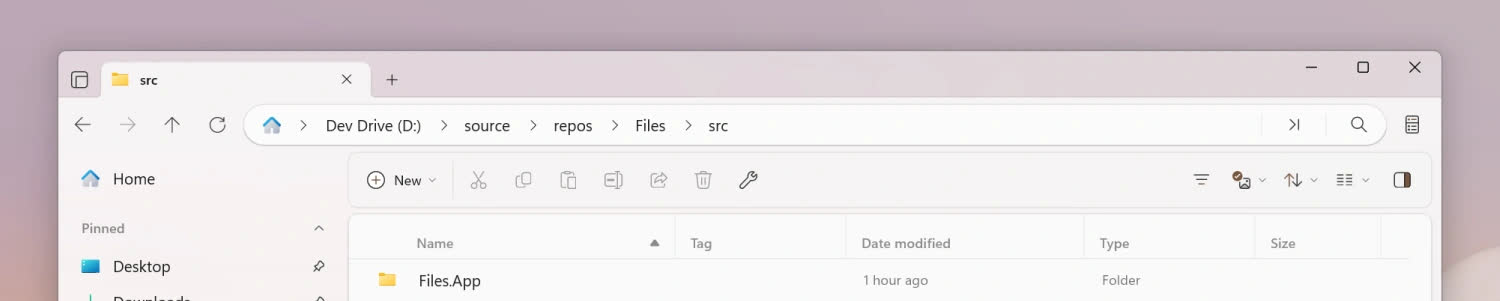
The Omnibar is a major design update in Files v4.0, replacing the traditional Address Bar with a brand new control that merges the path bar and search box into a single, intuitive interface. You can switch between navigation and search modes by clicking the mode buttons or by using their dedicated keyboard shortcuts.
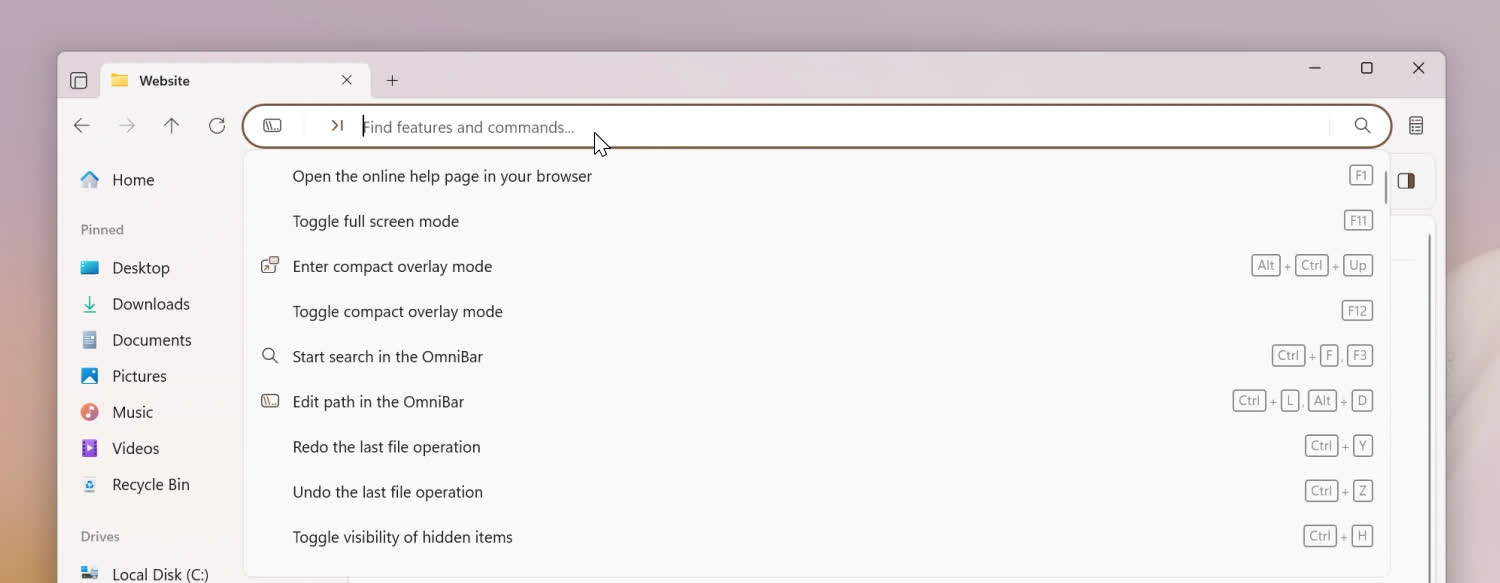
A powerful Command Palette mode provides access to advanced commands and actions. Learn more in our Omnibar documentation.
Dual Pane
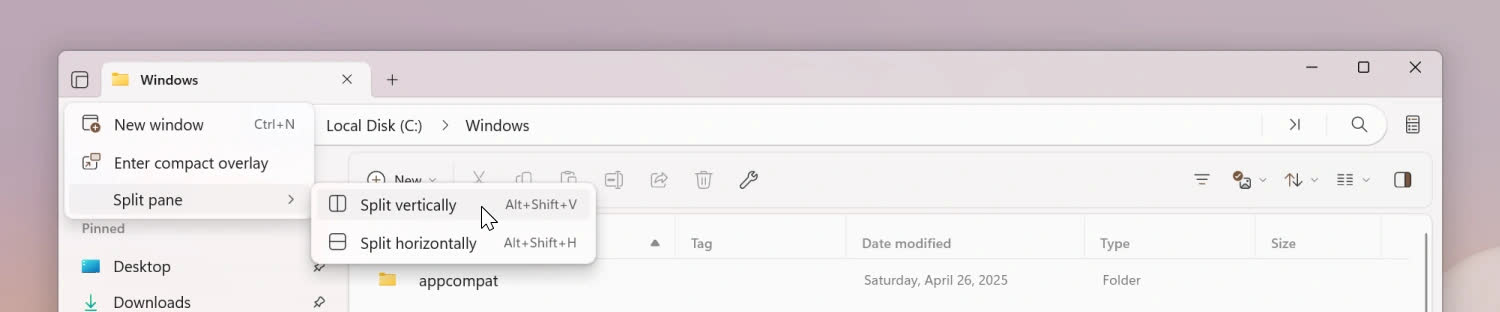
Dual Pane mode lets you view and manage two folders side-by-side, perfect for dragging files between locations without switching tabs. We made a number of enhancements to Dual Pane mode to improve your experience.
- You can now toggle Dual Pane mode by pressing Ctrl+Shift+S.
- We added a dedicated settings section for Dual Pane under Settings → Layout → Dual Pane.
- New panes now open with the same path you're currently viewing.
- The "Add pane" option is now labeled "Split pane".
Filtering and search
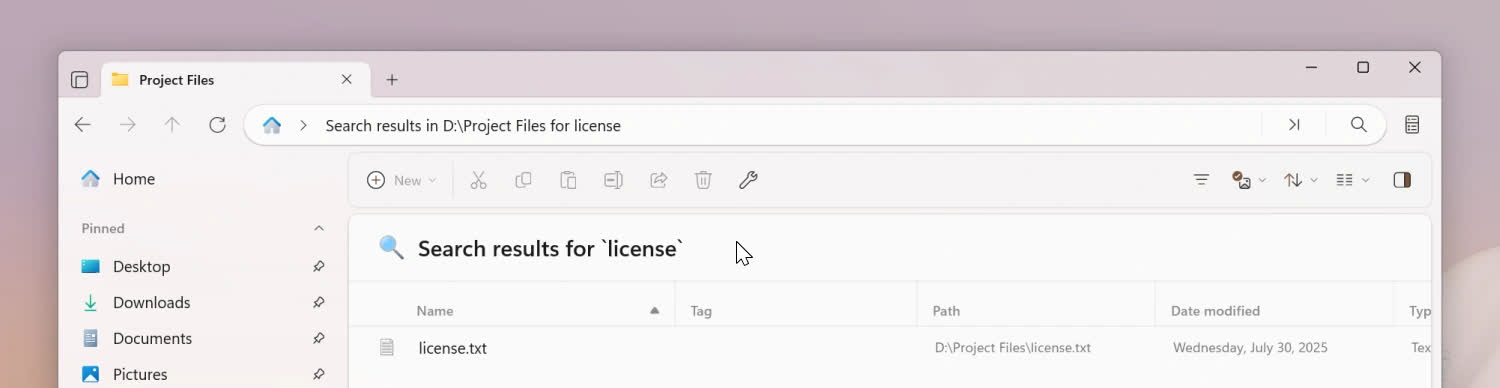
To reduce confusion between filtering and search, we've separated them into two features. Search leverages the Windows Search index for comprehensive queries across all indexed locations. Filter refines the items you see within the current folder.
Search is available by pressing Ctrl+F or by clicking the search icon in the Omnibar.
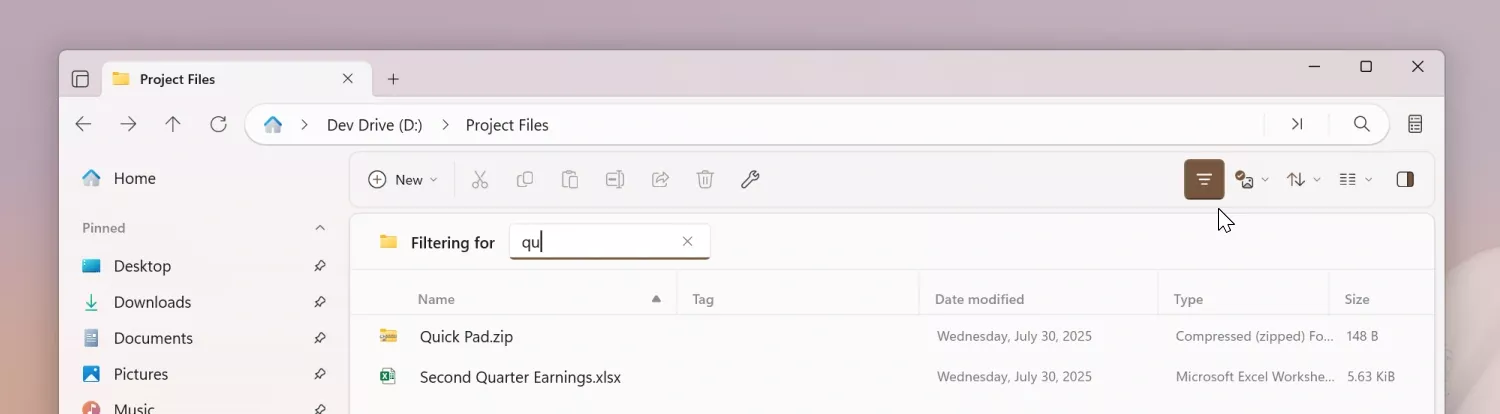
The filter header can be activated via the toolbar button or the Ctrl+Shift+F shortcut. It filters items in the open directory without relying on the index, keeping you in context and displaying results in real time.
Developer tools and git
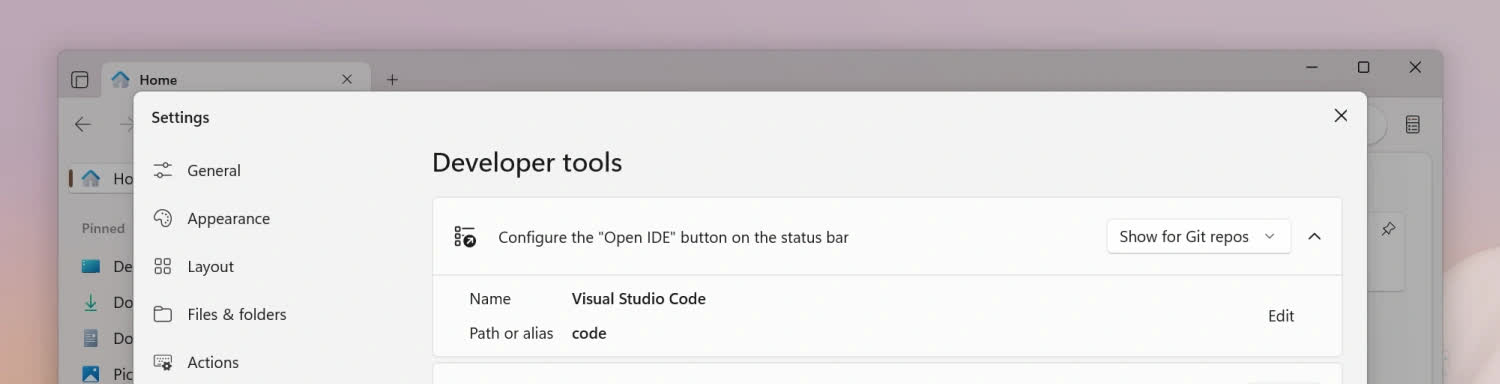
You can now remap the Open IDE command to any editor under Settings → Developer tools, giving you flexibility to integrate your preferred coding environment.
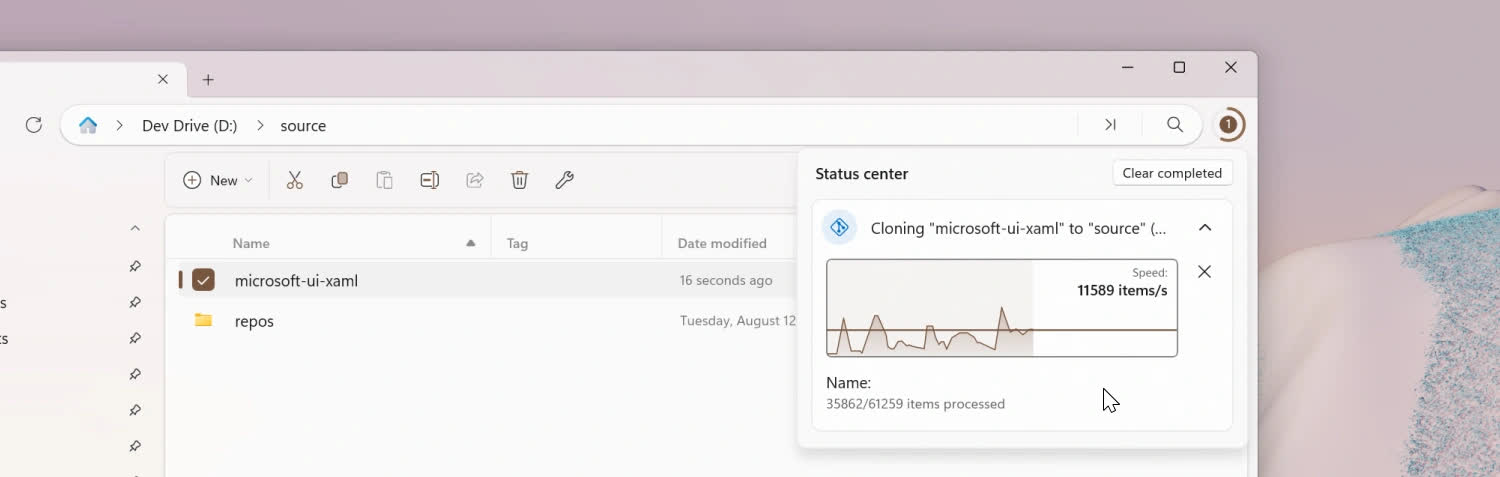
When you drop a GitHub URL into Files, you'll be prompted to clone it. Clone progress is displayed in the Status Center.
Cloud drives
Files now supports MagentaCLOUD, Sync, and OX Drive integration, expanding your options for cloud storage access directly in the app. The full list of available cloud drives can be viewed on our cloud drive documentation.
- OneDrive storage usage is now displayed in the Properties window on Windows 11.
Compare hashes
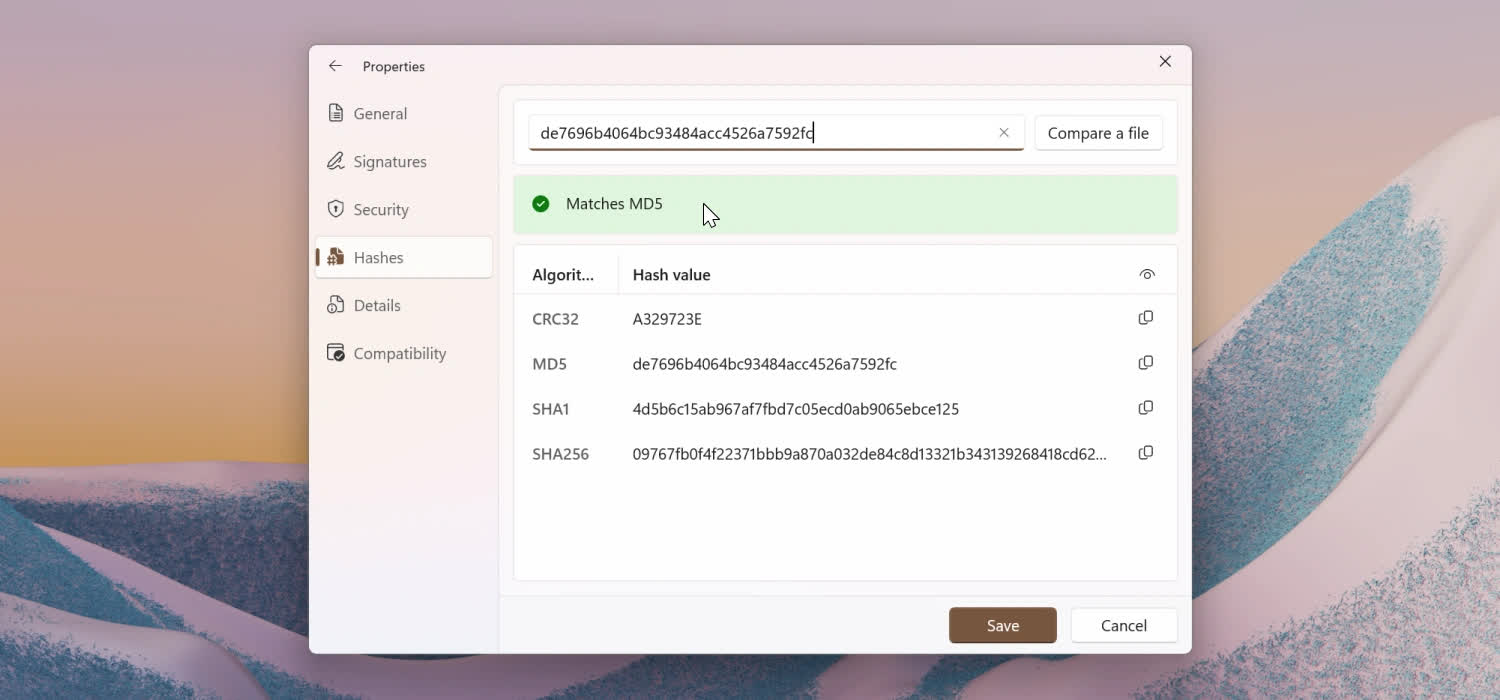
The Hashes tab in Properties has a new Compare a file option that lets you quickly verify a file's hash against a known value or another file.
File signatures
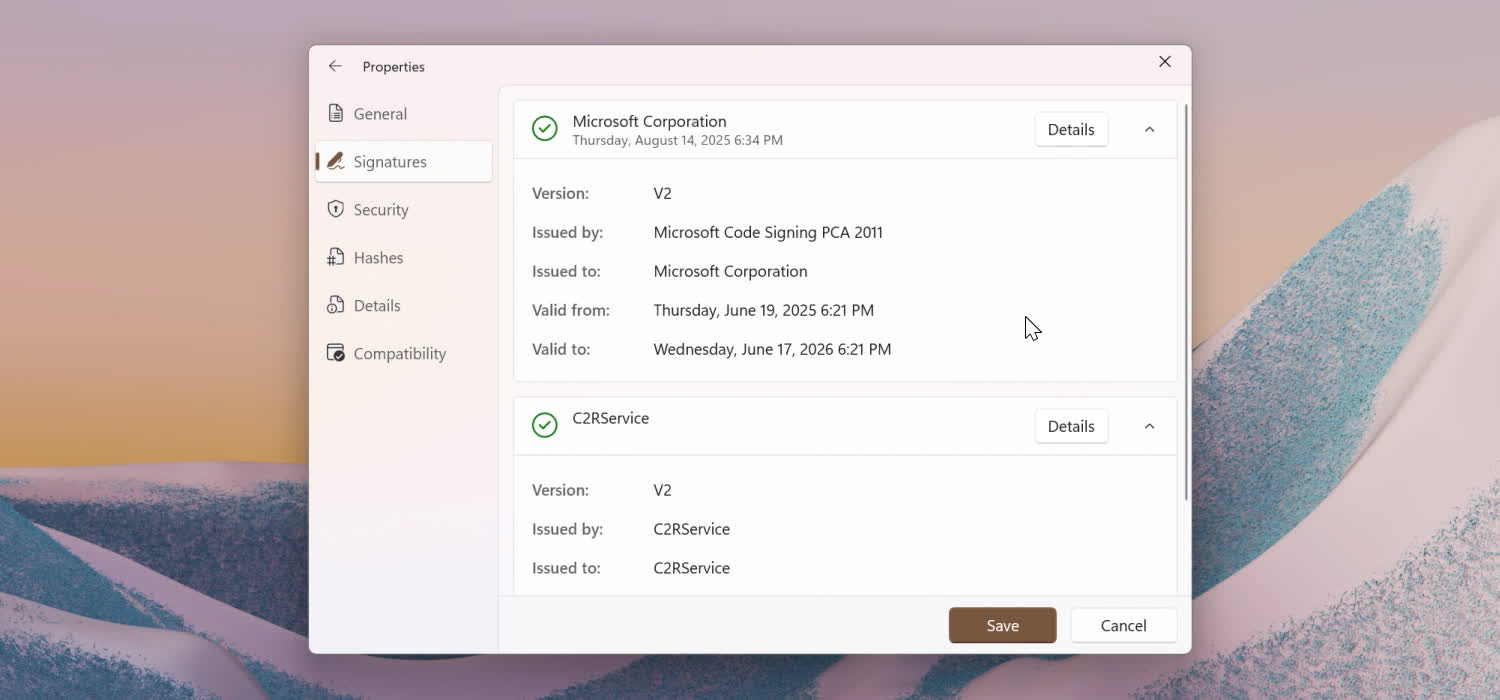
A new Signatures tab in Properties shows digital signatures so you can verify a file's authenticity at a glance.
Columns View
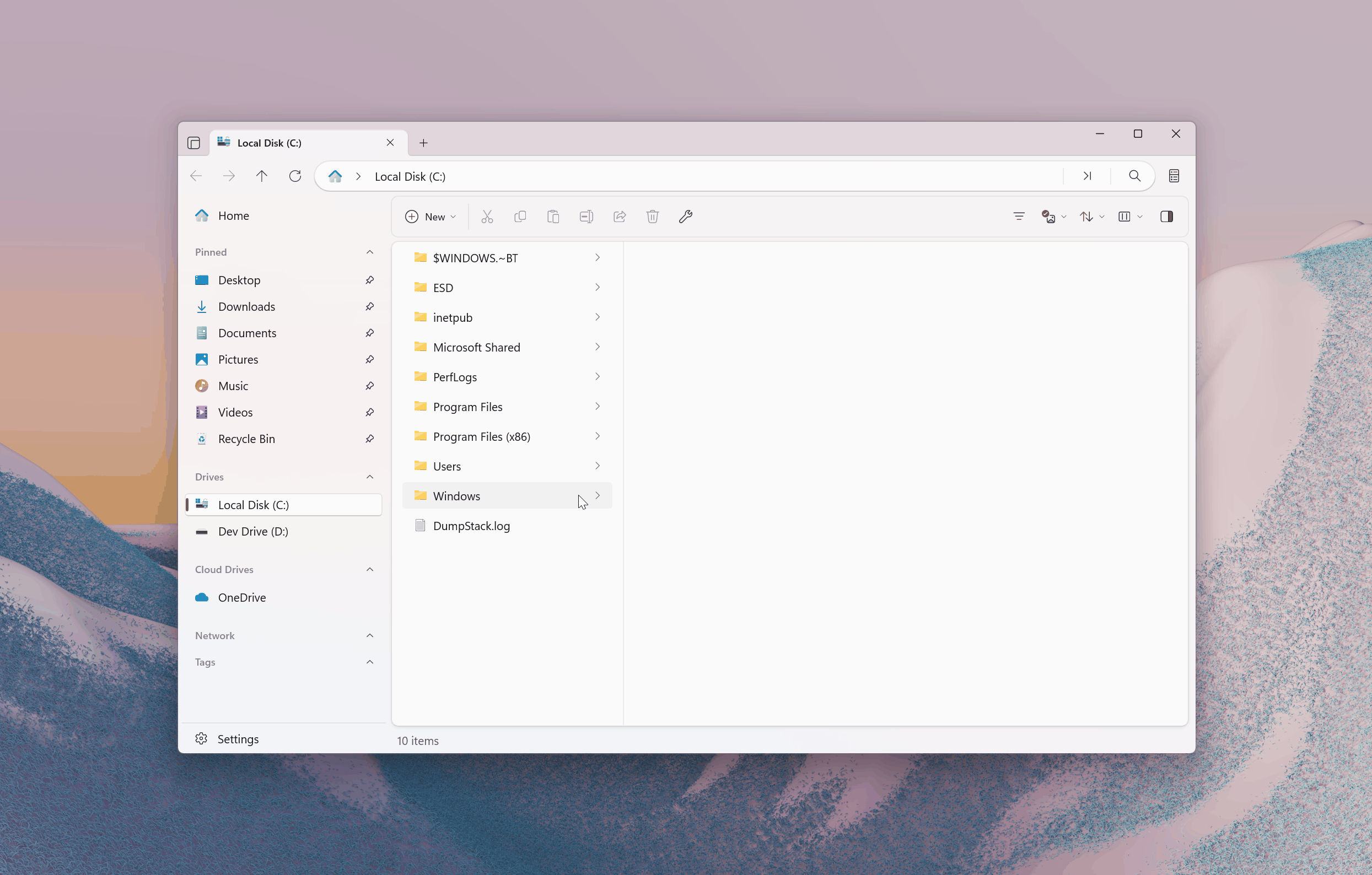
Columns View now automatically adjusts each column's width to fit its file names. You can also drag the dividers to resize columns or double-click a divider to snap it back to the optimal width.
Status Center
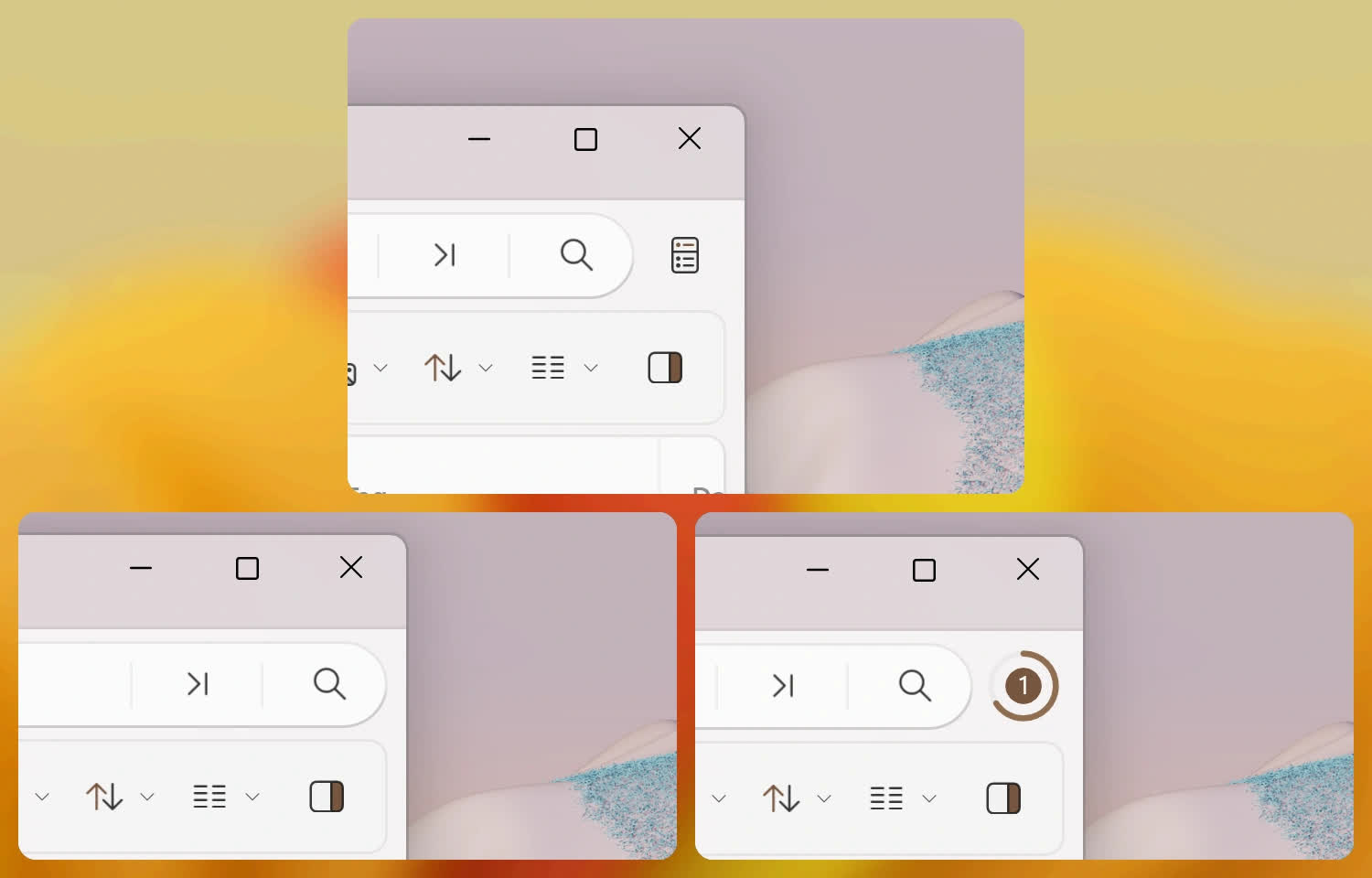
- You can now control when the Status Center icon is visible under Settings → Appearance → Toolbars → Status Center. By default, the icon is always visible, but you can configure it to appear only when tasks are in progress.
- Notification badges clear automatically when you open the Status Center.
- Font installation progress is now displayed in the Status Center.
Actions settings page
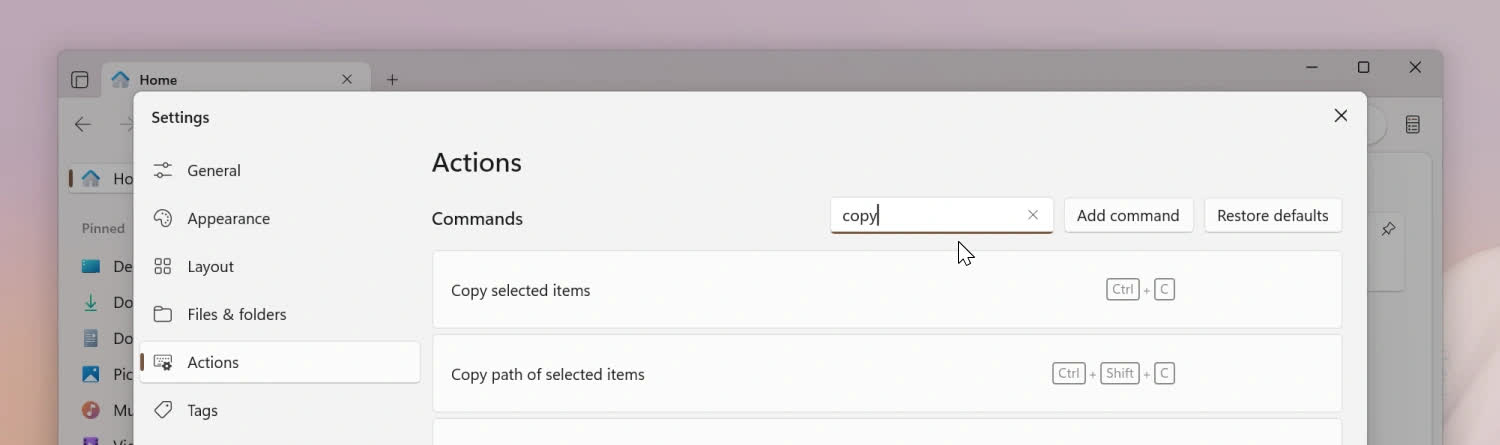
The Actions settings page now adapts to smaller window sizes, and we added a search box so you can quickly filter commands.
Archives
- The 7-Zip dependency has been updated to version 25.01.
- New archives now default to UTF-8 encoding.
- When extracting archives, Files auto-detects the encoding. You can still choose a different format if needed.
Customizable file size units
You can now choose whether file size units are shown in binary units (MiB) or decimal units (MB). This setting can be adjusted from Settings → Files & folders → Size format.
Sidebar
- The settings button has been relocated from the address bar to the left-hand sidebar.
- Right clicking the settings button displays an option to open the raw JSON file.
- If you hide all the sidebar sections, you'll now see helpful placeholder content.
Context menu
- Access keys are now displayed in the right-click context menu when holding down the 'alt' key.
- We added support for turning off the 'Open in Terminal' option in the right click context menu. This setting can be accessed from Settings → General → Context menu options .
Quick access to diagnostics
You can now open the log file and folder with keyboard shortcuts:
- To open the log file, press Ctrl+.
- To open the log folder, press Ctrl+Shift+.
Localization
We've expanded our language support to now include Armenian, broadening accessibility for global users. Our localizations are maintained by our dedicated community members. If you'd like to get involved, we invite you to join us on Crowdin: https://crowdin.com/project/files-app.
Other highlights
- You can now browse all supported image formats when selecting a background in Settings.
- You can now browse all supported icon file formats when selecting an icon in Properties.
- We've replaced the Release Notes dialog with a dedicated tab that opens automatically after updating Files. This makes it easier to explore what's new and improved in each release.
- We've improved the performance of the Quick Access widget on the Home Page.
- The review prompt in the Store version of Files will now appear only once per user, and only after 30 sessions. Additionally, the prompt no longer blocks user input and is designed to be less disruptive.
- Experimental support for long file paths allows you to work with directories and filenames that exceed traditional Windows limits, opening up more possibilities for complex projects.
Fixes
Updates and release notes
- Fixed an issue where an error dialog would sometimes appear after updating Files.
- Fixed a crash that would sometimes occur during updates.
- Fixed an issue where the WebView process for the Release Notes page would remain open in the background.
- Fixed an issue where the Release Notes page sometimes used the wrong theme.
Settings dialog
- Fixed an issue where the Windows version was copied incorrectly.
- Fixed an issue where the icon for "developer tools" didn't display properly on Windows 10.
Sorting and grouping
- Fixed sorting issues with files containing #-# numbering.
- Fixed an issue where name sorting was case-sensitive.
- Fixed misaligned group header text.
Shortcuts and commands
- Fixed an issue where the "Run with PowerShell" action didn't pass the working directory.
- Fixed an issue where the delete key didn't work after removing an item from the selection.
- Fixed an issue preventing file selection via keyboard.
- Fixed an issue where the Home key didn't move focus while renaming items.
Navigation and layout
- Fixed an issue where the Home Page didn't properly refresh.
- Fixed an issue where adaptive layout removed focus from the active pane.
- Fixed an issue where the inactive pane would steal focus during file changes.
- Fixed an issue where switching layouts incorrectly focused the right-hand pane.
- Fixed an issue where the 'layout' icon didn't match the selected layout.
- Fixed RTL support (please note that some areas are still missing support).
- Fixed an issue where the Cleanup and Format options were incorrectly displayed for Cloud Drives.
- Fixed an issue where the Status Center didn't display file-operation sizes.
- Fixed an issue with deleting items that didn't fit in Recycle Bin.
- Fixed an issue preventing folders ending in .url from opening properly.
- Fixed errors that sometimes occurred with shortcuts in Git repositories.
- Fixed a crash that would occur when using an invalid background image.
- Fixed an issue where text in the permissions page wrapped incorrectly.
- Fixed an issue where the sidebar flickered when resizing the properties window.
- Fixed an issue where installing multiple instances of Files (e.g. Files - Preview) would unpin Recycle Bin from the sidebar.
- Fixed an issue with clearing selection via touch.
Toolbar
- Fixed an issue where toolbar buttons sometimes displayed the wrong icon state.
- Fixed an issue where the extract button was sometimes missing from the toolbar.
- Fixed the menu label for overflow items in the toolbar.