VirtualBox is a versatile, full-featured virtualization platform that enables you to run multiple operating systems on a single physical machine. It supports x86, AMD64/Intel64, and ARM64 architectures, making it suitable for desktops, servers, and development environments.
Designed for both enterprise and personal use, VirtualBox offers a rich set of features, strong performance, and broad hardware compatibility. The base package is freely available as open source software under the GNU GPL version 3, with an optional Extension Pack providing advanced capabilities such as USB 3.0 support, remote desktop integration, and disk encryption.
VirtualBox remains one of the most accessible and full-featured virtualization solutions available, particularly strong for development, testing, demos, and smaller-scale or home use. But, if your workloads are graphics-intensive, you need high performance I/O (USB, GPU passthrough, etc.), or need enterprise features scaled across many systems, there might be better‐suited alternatives (like VMware, Hyper-V, or KVM/QEMU) depending on OS and hardware.
What host operating systems are supported by VirtualBox?
VirtualBox runs on Windows, macOS (Intel), Linux, and Solaris (x86). Different versions may also provide different support (for example Apple Silicon support has changed).
Can I run macOS on a Windows machine?
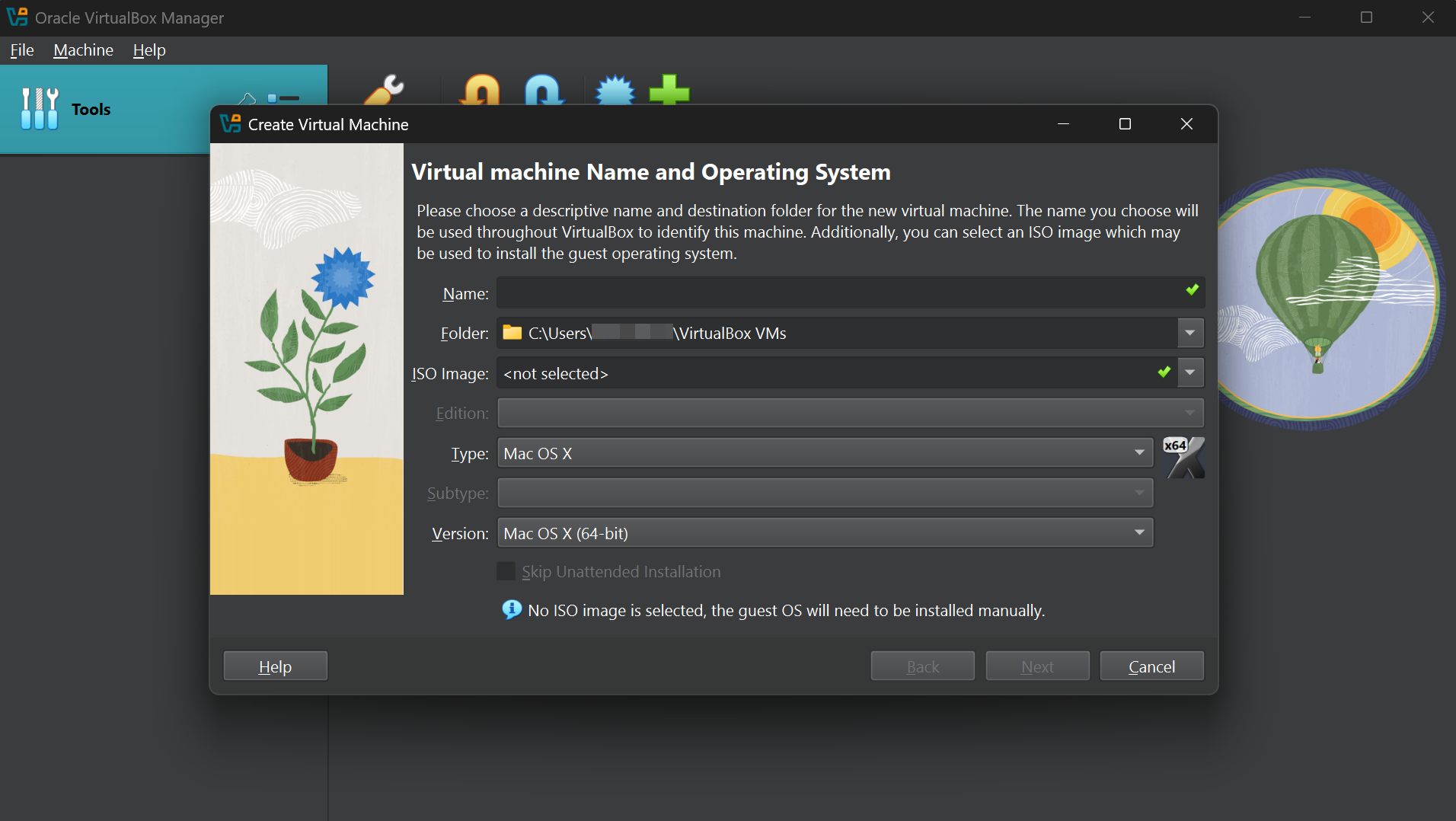
Yes, with VirtualBox, you can install multiple operating systems on a single PC and seamlessly switch between them, including macOS on Intel hardware. VirtualBox can run multiple x86 OS such as Windows, macOS, Linux distributions, FreeBSD, and OpenBSD on your host machine. The operating systems run within an application, which virtualizes the hardware in a completely isolated environment.
Is VirtualBox free?
Yes, VirtualBox is free to use for most people. The base package is open-source software distributed under the GNU General Public License (GPL) version 3. This means you can download, use, and even modify it without cost for personal, educational, or commercial purposes.
What is the "Extension Pack" and when do I need it?
The Extension Pack provides additional features beyond the base VirtualBox package – things like USB 2.0/3.0 support, remote desktop, and certain other advanced capabilities. You install it after installing the base package. It must match the version of VirtualBox.
Do I need to dual boot or repartition the disk?
No, that's not necessary. VirtualBox uses your computer's file system and creates files that map to a virtual machine's disk drives, so there is no need to create a partition for each operating system. If you already have another OS with dual boot, you can use VirtualBox to run the other operating system in a virtual machine on your host operating system. Instead of dual booting, you can run both operating systems simultaneously and seamlessly switch from one operating system to another with a click of your mouse.
Can I run an x86 virtual machine on Arm hardware?
Running an x86 virtual machine on Arm is possible, but it comes with important limitations. VirtualBox does not currently support running x86 guest operating systems natively on Arm hosts like Apple Silicon (M1, M2, etc.) or Raspberry Pi. Virtualization relies on the host and guest sharing the same CPU architecture, and since Arm and x86 are different, VirtualBox cannot directly virtualize x86 code on ARM.
To run an x86 operating system on an Arm machine, you need emulation, not just virtualization. Tools like UTM, QEMU, or Parallels Desktop (with emulation) can translate x86 instructions into Arm instructions in real time. If you want to use VirtualBox on Arm, you must use an ARM64 guest OS, such as ARM-based Linux distributions or Windows for Arm. These will run much faster because VirtualBox can virtualize them directly, without translation.
What are the system requirements I should check before downloading/installing?
You need a host CPU that supports virtualization (Intel VT-x or AMD-V), sufficient RAM (depending on what you'll run in VMs), enough free disk space, and compatible OS version. Ensuring your BIOS/firmware settings allow virtualization, and that there are no conflicting hypervisors installed, helps avoid installation or runtime errors.
Features
Modularity
VirtualBox has an extremely modular design with well-defined internal programming interfaces and a client/server design. This makes it easy to control it from several interfaces at once: for example, you can start a virtual machine in a typical virtual machine GUI and then control that machine from the command line, or possibly remotely. VirtualBox also comes with a full Software Development Kit: even though it is Open Source Software, you don't have to hack the source to write a new interface for VirtualBox.
Virtual machine descriptions in XML
The configuration settings of virtual machines are stored entirely in XML and are independent of the local machines. Virtual machine definitions can therefore easily be ported to other computers.
Guest Additions for Windows, Linux and Solaris
VirtualBox has special software that can be installed inside Windows, Linux and Solaris virtual machines to improve performance and make integration much more seamless. Among the features provided by these Guest Additions are mouse pointer integration and arbitrary screen solutions (e.g. by resizing the guest window). There are also guest additions for OS/2 with somewhat reduced functionality.
Shared folders
Like many other virtualization solutions, for easy data exchange between hosts and guests, VirtualBox allows for declaring certain host directories as "shared folders", which can then be accessed from within virtual machines.
VirtualBox is being actively developed with frequent releases and has an ever growing list of features, supported guest operating systems and platforms it runs on. VirtualBox is a community effort backed by a dedicated company: everyone is encouraged to contribute while Oracle ensures the product always meets professional quality criteria.
What's New
This is a maintenance release. The following items were fixed or added:
- VMM: Avoided querying/setting xcr0 for CPUs without xsave feature when using Windows Hyper-V as the virtualization engine
- Windows installer: Added support for detecting the Visual C++ runtime via the servicing infrastructure (github:gh-723)
- Windows Host: Fixed clipboard handling of Unicode formats (github:gh-677)
- Linux Host: Added initial support for kernel 7.2
- Linux Guest: Fixed support for updated RHEL 9.8 and 9.9 kernels
- UEFI: Fixed possible bug check and reboot of Windows 11 when updating Secure Boot DBX entries
- BIOS: Simplified build prerequisites, NASM 2.16 or later is now usable for everything (github:gh-520)
VirtualBox 7.2.12 is a maintenance release. The following items were fixed or added:
- VMM: Fixed issue when CentOS 10 VM was not booting due to the message "Fatal glibc error: CPU does not support x86-64-v3" (github:gh-642)
- Devices/EFI: Fixed booting issue when ARM VM had less than 1024 MiB of RAM assigned (github:gh-679)
- USB: Fixed issue when it was not possible to attach USB device to headless VM on Apple Silicon/macOS 26.4.1 (github:gh-631)
- Storage: Fixed issue when VIRTIO-SCSI device was not recognized as SSD device by guest system (github:gh-634)
- Network: Fixed issue in E1000 emulation code which triggered debug log creation (github:gh-645)
- Network: Fixed issue in E1000 emulation code which prevented OS/2 guest from booting (github:gh-683)
- Linux Host: Fixed issue when VMs could not be started due to kernel oops (github:gh-639)
- Linux Host and Guest: Fixed issue when kernel modules were failing to build with openSUSE 16.0 kernel
- Linux Host and Guest: Added initial support for kernel 7.1
- Linux Host and Guest: Added extra fixes for RHEL 9.8 kernel (github:gh-676)
- Linux Host and Guest: Added possibility to build source code using NASM instead of YASM as the assembler (github:gh-520)
- Linux Guest Additions: Added initial support for Extended Data Control Protocol for clipboard sharing with Plasma on Wayland guests (github:gh-33)
- Linux Guest Additions: Added extra fixes for preventing vboxvideo kernel module build with kernel version 7.0 and newer (github:gh-655)
- OS/2 Guest Additions: Fixed issue when Shared Folders automount and clipboard sharing stopped working (github:gh-551)